

You merged a few documents and the result is a mess: most pages are A4, but three of them are slightly wider because they came from a scanner, and one is Letter-sized because someone in the chain used a US template. On screen it looks fine. The moment you print it, or feed it to a system that expects one consistent page size, the mismatch shows: pages that don't line up, margins that jump, a binder that won't sit flat.
Resizing fixes that by normalizing every page to one size. This guide covers how to do it, the three ways content can scale into the new size, and the one setting that decides whether you touch every page or just the odd ones out.
Why pages end up different sizes
A PDF doesn't enforce a single page size. Each page carries its own dimensions, so a document assembled from multiple sources inherits a mix:
- Scanning. A scanner that auto-detects edges produces pages a few millimetres off from true A4 or Letter, and rarely identical to each other.
- Merging. Combining PDFs from different origins stacks their original sizes side by side. The merge doesn't normalize anything.
- Mixed templates. One contributor works in A4, another in Letter. Both look "normal" alone; together they alternate.
- A single rogue page. A landscape exhibit, a wide spreadsheet export, or a cover page built at the wrong size.
The visible content can look fine while the underlying page boxes disagree. Resizing is what brings them back into agreement.
The steps
Open Blackpdf's Resize PDF Pages tool and drop your file in.
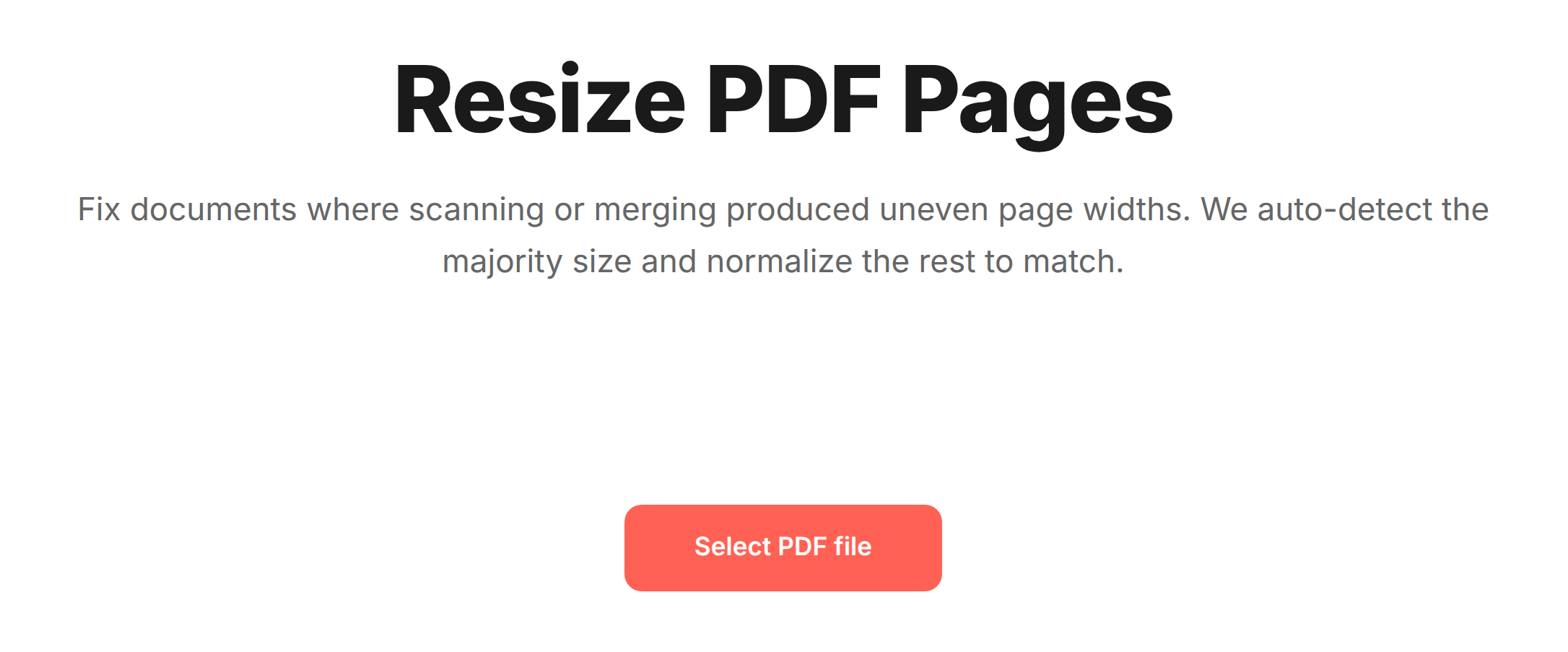
Look at the What we found card. The tool scans the document, detects the majority page size (the size most pages already share), and shows what fraction of the document matches it. This is the size it will normalize everything else toward by default.
Pick a Target size:
- Auto matches the detected majority size. The right pick when most of the document is already correct and you just want the stragglers to fall in line.
- A4 (210 × 297 mm), Letter (8.5 × 11 in), or Legal (8.5 × 14 in) force a specific standard, regardless of what the document currently uses.
- Match first page uses page 1's dimensions as the target. Useful when page 1 is correct and the rest drifted.
- Custom… lets you type an exact Width and Height in mm, in, or pt.
Pick How to resize — this decides how the existing content scales into the new page size (covered in detail below).
Pick Apply to: Only outliers (the default — touches just the pages that differ from the majority) or All pages (forces every page, even ones already the right size).
Click Normalize pages and download the result.
The three ways content scales
The How to resize setting is the one that changes how the result looks. The page size is the same in all three cases; the difference is what happens to the content already on the page.
- Fit with padding preserves the content and its aspect ratio, then pads the leftover space with whitespace. Nothing is distorted and nothing is cut. This is the safe default for almost every document: a slightly-too-wide scan becomes A4 by gaining a thin white margin, not by squashing the text.
- Stretch to fit scales the content to fill the new page exactly. It uses every millimetre, but because width and height scale independently, it can distort the content — text and images get subtly (or not so subtly) stretched. Use only when the size change is tiny, or when slight distortion genuinely doesn't matter.
- Crop to fit fills the page and trims whatever spills over the edges. No distortion, no padding, but you lose anything that falls outside the new boundary. Right when the page has wide empty margins you're happy to lose, wrong when content lives near the edge.
Rule of thumb: Fit with padding unless you have a specific reason. It's the only option that guarantees nothing is distorted and nothing is lost.
Only outliers vs. all pages
The Apply to setting decides the scope:
- Only outliers leaves pages that already match the majority size untouched and resizes just the ones that differ. This is what you want most of the time: a 40-page document where 37 pages are correct and 3 came in wrong gets exactly 3 pages changed. The 37 good pages stay byte-for-byte as they were.
- All pages forces every page to the target size, including pages already correct. Use this when you've chosen an explicit target (A4, Letter, Custom) and want a guarantee that every page is precisely that size, with no tolerance for the near-misses that "Only outliers" might leave alone.
For cleanup work, Only outliers is the lighter touch. For strict conformance ("every page must be exactly A4"), All pages with an explicit target is the certain one.
Common questions
Will resizing blur or degrade my content?
No. Resizing changes the page box and scales the existing content into it; it doesn't re-render text or re-compress images. Text stays vector-sharp. With Fit with padding, the content isn't even scaled disproportionately — it's just repositioned with added margin.
What's the difference between resizing and cropping?
Cropping trims the visible page boundary without touching the content's scale — it hides margins. Resizing changes the actual page dimensions and fits the content to them. Crop when you want to cut away margin; resize when you need pages to share one size.
My pages are different orientations (some portrait, some landscape).
Resizing normalizes dimensions, not orientation. A landscape page forced into a portrait target will fit-with-padding into the portrait box (leaving large top/bottom margins) rather than rotate. If the goal is to make a sideways page upright, rotate it first, then resize.
Can I resize a scanned PDF?
Yes — scanned PDFs are one of the most common reasons to resize, since scanners rarely produce perfectly identical page sizes. Resizing normalizes the dimensions. If you also need the text to be selectable, run OCR separately; resizing alone doesn't add a text layer.
Can I resize a password-protected PDF?
Not directly. Remove the password with Unlock PDF first (you'll need the original password), resize, then re-apply protection with Protect PDF if needed.
Does resizing change the file size?
Only marginally. Padding adds a negligible amount; cropping can shave a little. If you need the file genuinely smaller, run it through Compress PDF afterwards.
Wrap-up
Resizing is the fix for a document whose pages don't agree on a size:
- Target size: Auto to match the majority, or A4 / Letter / Legal / Custom to force a standard.
- How to resize: Fit with padding for safety (no distortion, no loss), Stretch or Crop only for specific cases.
- Apply to: Only outliers to touch just the odd pages, All pages for strict conformance.
For the background on why pages drift apart in the first place — and how page boxes actually work inside a PDF — see Why a PDF's Pages End Up Different Sizes.