

A 60 MB scanned report. A 200 MB photo-heavy portfolio. A simple invoice that somehow weighs 12 MB. Most PDFs are bigger than they need to be, and the reason is almost always the same: nobody told the document how small it could be. Compression fixes that, and done right, you can't see the difference on screen.
What actually makes a PDF large
Three things, almost always in this order:
- Embedded images. Every photo, screenshot, or scanned page lives inside the PDF at the resolution it was inserted at. A 24-megapixel JPEG dropped into a Word document and exported to PDF will still be 24 megapixels in the PDF, even if it's displayed at the size of a thumbnail.
- Embedded fonts. Every font used has to ship inside the PDF for the file to render correctly on any machine. A document that uses three font families plus their bold and italic variants can carry 5–15 MB of font data before you've added a word of content. (PDF/A files are even heavier on this front, because the format requires every font to be fully embedded by spec.)
- Uncompressed content streams. Older PDF exporters don't always apply
the built-in
FlateDecodecompression to text and vector graphics, leaving them stored as plain (large) data.
Knowing this helps you predict how much you can shrink a file. A text-only memo will barely budge with compression. A scanned 50-page contract can usually lose 70–90% of its size without anyone noticing.
Pick the right compression level
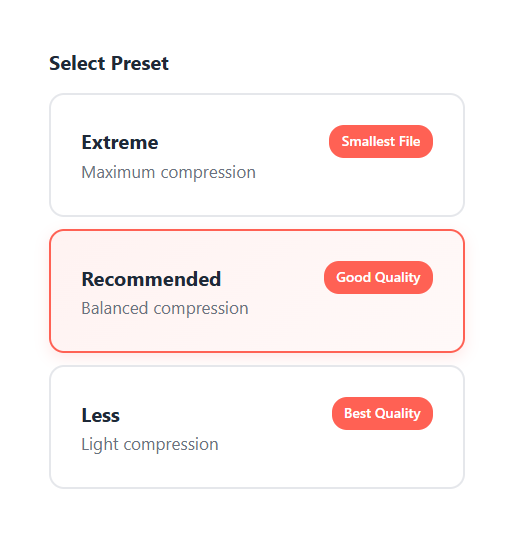
Blackpdf's Compress PDF tool gives you three preset levels. Here's when each is the right call:
Light compression. Re-encodes images at high DPI, keeps all fonts intact. Use this for documents that will be printed, archived long-term, or shared with print vendors.
Balanced compression. Drops images to a mid-range DPI (still crisp at any reasonable viewing zoom on screen) and subsets embedded fonts. The right pick for documents you're emailing, attaching to support tickets, or posting on a website. It's the default for a reason; pick this one unless you know you need something else.
Maximum compression. Drops images to screen resolution, may convert JPEG2000 to standard JPEG, and removes any non-essential metadata. Don't print these, but they're great for documents that will only be read on screen.
The most common mistake is reaching for Extreme by default. If you will ever print the file, or zoom in on a diagram, the artifacts will show. Recommended is the safe pick.
Method — compress a PDF in your browser
There are two ways to drive the tool: pick a preset, or set the output size you want. Both run through the same workflow:
Open Blackpdf's Compress PDF tool and drop your file in.
Choose your approach:
Pick a preset: Less, Recommended, or Extreme. The tool previews the expected output size before you commit, so you can swap between them to find the right quality / size trade-off.
Set a target file size: use the Custom File Size input (Pro feature) to enter the exact size you need in MB or KB. The tool picks the compression level automatically to land at or below it. See Compress to a target size for when this is the right choice.
Click Compress PDF. The result shows the new file size alongside the original; a 60 MB file becoming 8 MB is normal for image-heavy documents.
Download. If the result isn't small enough, step down one preset (or lower your target) and re-run. The reduction compounds.
Compress to a target size
If you have a hard ceiling (Gmail caps attachments at 25 MB, support portals often want files under 10 MB, vendor uploads sometimes top out at 5 MB), Blackpdf's Custom File Size mode lets you set the number directly. Enter your target (MB or KB) and the tool figures out the compression level needed to land at or below it. The interface even offers smart suggestions based on the original file size so you don't have to guess what's achievable.
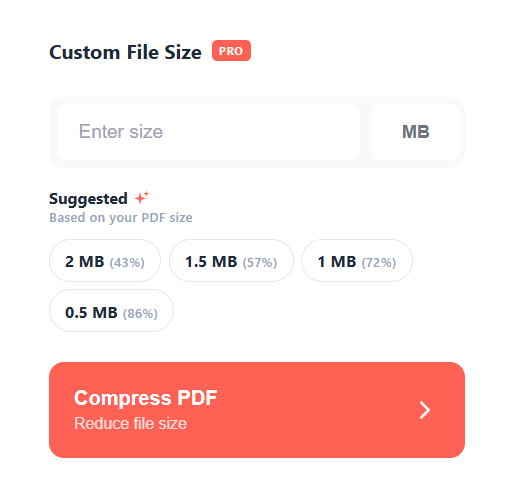
This is a Pro feature on Blackpdf; on the Free plan, custom-size compressions count toward your daily file limit.
When custom size beats picking a preset:
- The cap is fixed externally (email gateway, vendor portal, compliance upload form)
- You're submitting paperwork with a "max 5 MB per document" rule
- You need a consistent output size across a batch of files that vary wildly in original size
When it doesn't:
If your target is so low that even the most aggressive preset can't reach it (say, a 60 MB scanned PDF to under 2 MB), the compressor will warn you that the target isn't achievable. That's usually a sign you need to flatten first. See the next section.
When the file barely shrinks
If you've tried Recommended (or even Extreme) and the file is barely smaller (say, 8% off a 30 MB document), or you see a message saying "Unable to Compress: this PDF is already well-optimized", the bottleneck isn't image resolution or font weight.
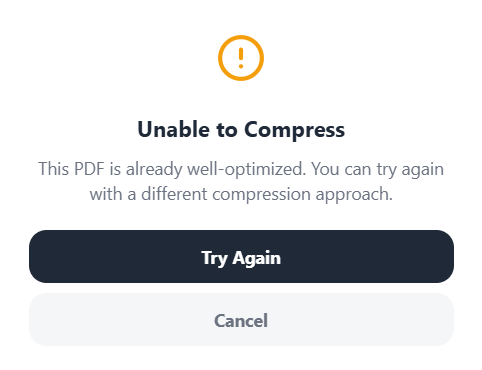
It's the structural complexity of the PDF: layered annotations, interactive form fields, transparency groups, vector overlays, threaded comments, signature widgets, or any combination of those. Each one is stored as a separate object the compressor has to preserve to keep the document interactive, and there's a hard floor on how much they can be squeezed without breaking functionality.
The fix is to flatten the document first. Flatten PDF rasterizes every layer (annotations, form fields, signatures, comments) into the underlying page content as one rendered surface. The result behaves like a printed copy: you can no longer edit form fields or extract annotations, but it looks identical and is drastically more compressible.
The workflow:
- Run the document through Flatten PDF.
- Feed the flattened output into Compress PDF.
- Pick Balanced on this second pass. Files that wouldn't budge before often lose 60–80% at this stage.
The trade-off is permanence: once flattened, you can't recover the editable layers. If there's any chance you'll need to edit the original later, keep an unflattened backup before you compress. For one-way archival or "I just need to email this" cases, flatten-then-compress is the strongest move available.
Compressing a scanned PDF
Scanned documents are a special case. Each page is one big raster image with no searchable text behind it, which makes them ideal compression candidates and ideal OCR candidates. The right move:
- Run the file through OCR PDF first. This adds an invisible text layer under each scanned image without changing the visible output: you keep the look of the scan, but the file becomes searchable, copyable, and screen-reader friendly. Our OCR guide covers picking the right language and what affects accuracy.
- Then compress the OCR'd file on Recommended mode. OCR slightly increases file size (it adds a text layer); compression more than recovers that.
Don't skip OCR and go straight to Extreme compression on a scanned PDF. You'll get a small file, but it'll be unsearchable and unreadable by assistive tech, which makes it a legal risk for any document subject to accessibility regulations.
Compressing many files at once
For batch compression (say, an entire folder of scanned receipts), drop the files in together. The tool processes each one with the chosen preset and returns a ZIP at the end. The single-preset approach is deliberate: if you need per-file tuning, do them one at a time and use Less for anything that needs to remain printable.
Common questions
Will compression damage my document?
Lossy compression (any setting that re-encodes images) does lose pixel data, but at the Recommended preset that loss is below the threshold most viewers can see on screen. Text stays sharp because text is stored as vectors, not pixels, so it's never re-encoded.
Can I compress to a specific file size?
Yes. Blackpdf's Custom File Size mode lets you enter a target (MB or KB) and the tool picks the compression level needed to land at or below it. It's a Pro feature. If your target is unreachable with the file as-is, you'll see a warning prompting you to flatten the document first.
Why is my PDF still large after compression?
Two common culprits: embedded fonts (every custom font ships inside the PDF), and structural complexity: interactive form fields, annotations, transparency, signatures, and vector overlays all take up space the compressor has to preserve. The fix in both cases is to flatten the document first and re-run compression on the flattened output. See "When the file barely shrinks" above for the full workflow.
Can I compress a password-protected PDF?
Not directly. The compressor can't read the file structure through the encryption. Remove the password with Unlock PDF first (you need the original password), compress, then re-apply protection with Protect PDF if needed.
Does compressing a PDF twice make it smaller?
Usually no, and sometimes it makes the file larger. Each compression pass re-encodes images, so a second pass loses more quality without meaningfully reducing size. If you need a smaller file, drop down one quality level instead of compressing twice.
What's the maximum file size I can compress?
Free accounts on Blackpdf can compress up to 25 MB. Pro increases that to 50 MB and Business to 100 MB. For files over 100 MB, the bottleneck is usually network upload speed; a desktop compressor running locally will finish faster than upload + compress + download round-trip.
Wrap-up
The 80/20 rule for PDF compression: pick Recommended on the first attempt, and only step up or down if the result isn't what you want. Reserve Less for documents headed for print, and Extreme for documents nobody will ever zoom into. If you have a hard size ceiling (an email attachment limit, a portal cap), use Custom File Size and enter the target directly. And if your PDF doesn't shrink as much as you expected, the document is usually structurally heavy (annotations, forms, custom fonts), so flatten first, then compress.
For long PDFs that won't compress small enough on their own, splitting them into smaller files is sometimes the better move: a 200 MB report broken into four 50 MB chapters is more useful than one 80 MB compressed file. The reverse case (combining several PDFs into one and then compressing) is covered in our merge guide.