


A PDF that opens with the pages sideways is one of those small frustrations that's annoying every single time. The fix is fast, but the wrong fix wastes hours: rotating the view in your PDF reader doesn't actually rotate the file. The next person who opens it sees the same sideways pages. Real rotation has to be saved into the document.
This guide covers how to rotate one page, all pages, or any combination, and the gotcha that catches people who try to fix rotation in Adobe Reader and end up frustrated.
Before you start
A quick check:
- The PDF shouldn't be password-protected. Rotation writes to the page content, which encryption blocks. If your file is locked, run it through Unlock PDF first (you'll need the original password).
- Know the difference between view rotation and saved rotation. Most PDF readers have a "Rotate Clockwise" option that turns the display but doesn't save the change to the file. If the rotation needs to stick (you're emailing the file, printing it, or running it through other tools), you need a real rotation that gets baked into the document.
The steps
Open Blackpdf's Rotate PDF tool and drop your file in.
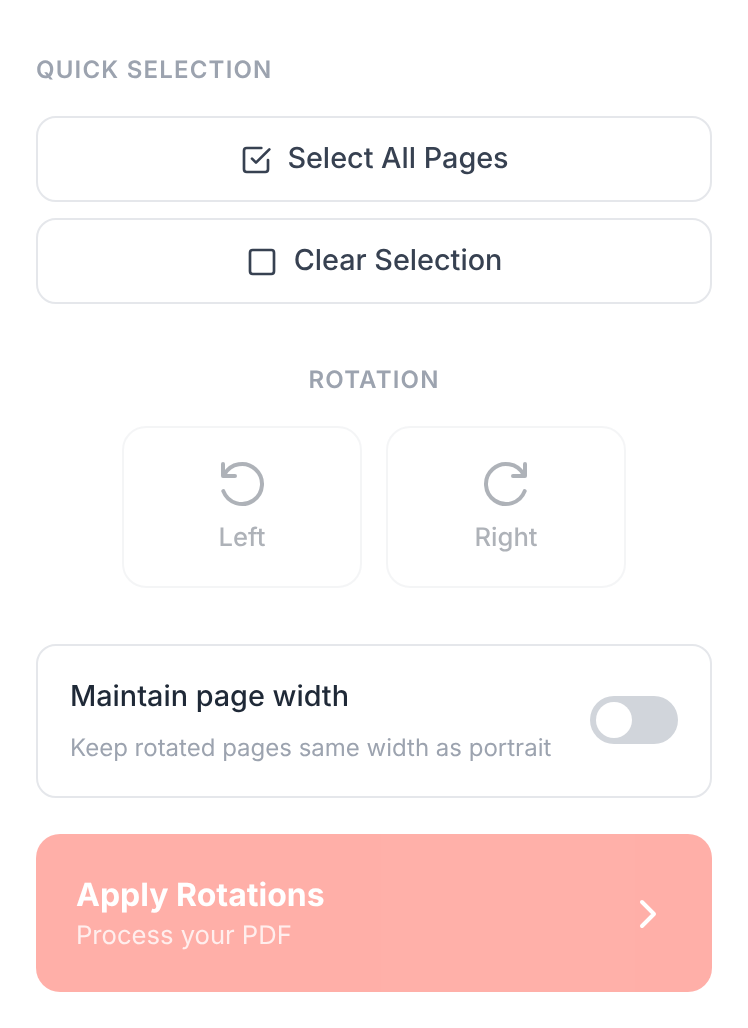
Pick which pages need rotating. Either click thumbnails to select specific pages, or use Select All Pages in the Quick Selection panel for a whole-document rotation.
Choose the rotation direction. Use Rotate Left 90° to rotate counter-clockwise; Rotate Right 90° for clockwise. Each click rotates the selected pages by one quarter turn, so two clicks in the same direction flips a page 180° (upside-down), three clicks gets the opposite of one click.
Click Apply Rotations and download the result.
Common rotation scenarios
One sideways page in a long document. Scroll the thumbnails to the offender, click it (only that page should highlight), pick the correct direction. The rest of the document is untouched.
Whole document scanned sideways. Use Select All Pages, then rotate. The single most common case for scanners that loaded pages landscape when the content was portrait.
Mixed orientations need normalizing. Click the pages that are wrong (the thumbnails make it obvious), rotate just those. Right-side-up pages stay where they are.
Page is upside-down. Two right-rotations (or two left-rotations) flip a page 180°. There's no dedicated "180°" button because sequencing two clicks gives the same result with less UI clutter.
Common questions
Why does my PDF reader's "Rotate" button not save?
Most readers (Adobe Reader, Preview, browser viewers) treat their Rotate command as a view preference, not a document change. It rotates how the page is displayed in that session and doesn't write anything to the file. Close and reopen, and the rotation is gone. To save rotation into the document so anyone opening it sees the corrected orientation, use a tool that writes the rotation back to the file's page structure.
Will rotation lose quality?
No. PDF rotation is a metadata change — the tool tells the document "display this page rotated by 90°", it doesn't re-render or re-encode the page content. Text, images, and formatting are byte-for-byte unchanged.
Can I rotate a single page in a multi-page PDF?
Yes. Select just that page's thumbnail and apply the rotation; the rest of the document stays untouched. Mixed-rotation documents are fine — PDF supports per-page rotation as a built-in feature.
Can I rotate a scanned PDF?
Yes. Scanned PDFs are just image-only PDFs, and rotation works the same as for text-based PDFs. The image gets a "rotate by 90°" instruction; nothing inside the image is altered. If you also need the scanned PDF to have searchable text afterwards, run it through OCR PDF once it's the right way up.
Can I rotate a password-protected PDF?
Not directly. Remove the password with Unlock PDF first (you need the original password), rotate, then re-apply password protection with Protect PDF if needed.
Does rotation change the file size?
Negligibly. Page rotation metadata is a few bytes per page. A 100-page document gains less than 1 KB.
What about pages that are slightly tilted, not 90°?
PDF rotation is locked to 90° increments (the four quarter-turns the format supports natively). For pages that are off by a few degrees — common with handheld phone scans — you'd need a deskewing tool or a re-scan. The right move is usually to re-scan the page with the document properly placed; software deskewing on text-only pages works OK, but on diagrams it creates more problems than it solves.
Wrap-up
The whole flow is short:
- Drop the file in.
- Pick the pages that need rotating.
- Rotate left or right.
- Click Apply Rotations and download.
The thing to remember: the rotate button in your PDF reader probably doesn't save the change to the file. Use a real rotation tool when the orientation needs to stick.