

A PDF with too much white space around the content prints with wasted margins. A scanned document carries the scanner's gutter on every page. A poster needs to be trimmed to a specific frame. The fix is cropping: telling the PDF which part of each page should remain visible and discarding the rest.
This guide covers three ways to crop a PDF — automatically, visually, or by exact margin values — and when each is the right choice.
Before you start
Two things to check first:
- The PDF shouldn't be password-protected. Cropping writes to the page geometry, which encryption blocks. If your file is locked, run it through Unlock PDF first (you need the original password).
- Decide if the same crop applies to all pages or differs per page. Scanned documents usually crop the same way across every page; mixed-content PDFs (cover, body, appendix) sometimes need different crops per section.
The steps
Open Blackpdf's Crop PDF tool and drop your file in.
Pick which pages the crop should apply to:
- All Pages — same crop on every page (the most common case)
- This Page — crop just the current page; leave the rest untouched
- Custom — pick specific pages to crop
Set the crop area using one of the three methods below.
Click Crop PDF and download.
Three ways to set the crop area
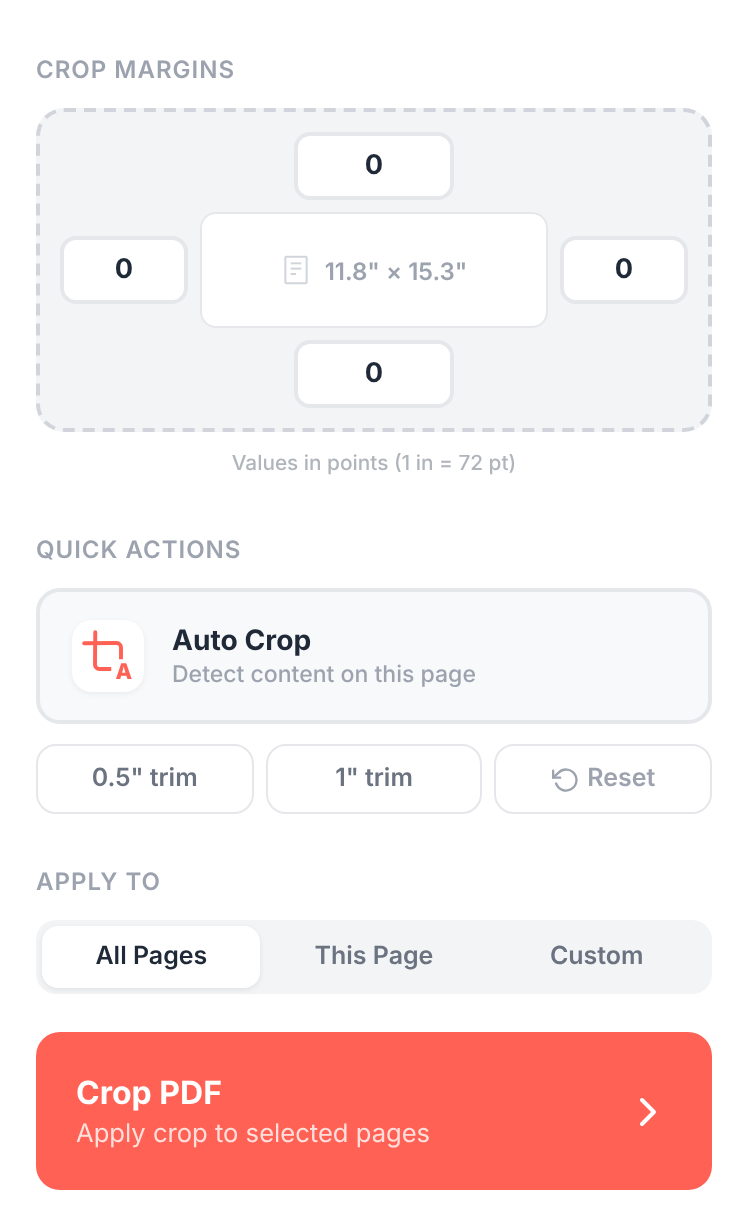
Auto Crop — the tool detects content on the page and sets the crop to fit just the inked area, removing all blank margins. Best for scanned documents and screenshots with extra whitespace. One click; review the result before applying.
Drag handles — the page preview has eight handles (four corners, four edges). Drag any handle to resize the crop area visually. The most flexible method for content where the crop needs to be set by eye (e.g., trimming around a specific element).
Precise margins — type exact crop margin values (top, right, bottom, left) into the Crop Margins panel. Use this when you need millimeter or point-level precision: print-bleed specs, templates with consistent gutters, anything where "looks about right" isn't good enough.
You can also Reset at any point to revert to the original uncropped page if you want to start over.
When to use each method
Auto Crop: scanned documents, photographed pages, screenshots with browser chrome to trim. The auto detection works best on pages with clear ink-on-white contrast and a clean background.
Drag handles: posters, marketing materials, cover designs, anything you're trimming to a specific visual frame.
Precise margins: print preparation (specific bleed and trim sizes), documents that need to match a template, anything with exact dimensional requirements.
Common questions
Will cropping remove the cropped content from the file?
It hides it. PDF cropping changes the page's visible dimensions (specifically its CropBox), but the underlying content outside the crop area still exists in the file — it's just outside the visible page. For most purposes this is fine; the crop sticks across viewers, prints, and conversions. For security-grade removal of content (sensitive information you absolutely must not have recoverable), use Redact PDF on the sensitive areas first, then crop, then flatten.
Can I crop pages to different sizes within the same document?
Yes. Use This Page or Custom to apply different crops to different pages. The output PDF will have pages of mixed sizes where you applied different crops; pages where you applied the same crop will all match. If you later need every page back to one uniform size, resize the pages to normalize them.
Does cropping reduce file size?
Slightly, but less than you'd expect. Because the underlying content outside the crop still exists in the file, file size barely changes. To actually shrink the file, run the cropped result through Compress PDF.
Can I un-crop later?
Yes, if you cropped through this tool — the underlying content isn't deleted, just hidden. Resetting the crop to the original page dimensions reveals everything. But if you also flattened or re-saved the file in another tool, the underlying content may have been permanently removed. Keep an uncropped master copy of important documents.
Can I crop a scanned PDF?
Yes — cropping works the same on scanned (image-based) PDFs as it does on text-based ones. The crop changes the visible page area regardless of what's inside.
Will cropping affect form fields, signatures, or annotations?
Form fields and annotations stay in place visually. If a form field or annotation falls outside the crop area, it's no longer visible but still exists in the file — it can become visible again if the crop is reset. Digital signatures cover the document content; cropping doesn't usually invalidate them (the underlying content didn't change), but check signature validity in a viewer afterwards if it matters.
What's the difference between cropping and resizing?
Cropping changes which part of each page is visible. Resizing would change the dimensions of the content itself — scaling it up or down. PDF tools sometimes mix these terms; cropping is the operation that hides margins.
Wrap-up
Three approaches by what you're trying to do:
- Trim white margins? Try Auto Crop first; it works most of the time on one click.
- Need a visual trim around content? Drag the handles in the page preview.
- Need exact dimensions? Use the precise margin inputs in the Crop Margins panel.
For documents that need both cropping and other adjustments, do the crop last — after rotating, splitting, or extracting any pages. That way you don't end up cropping a page you're about to remove anyway.