


Merging PDFs is one of those operations that sounds trivial until you actually need to do it. The job application wants resume, cover letter, and portfolio as a single file. The mortgage paperwork has a signed page that needs to land between sections 3 and 4 of the contract. The expense report needs eight receipts plus the totals sheet stacked together. Whatever the trigger, the goal is the same: take several PDFs and end up with one.
This guide covers two ways to merge, when each is the right call, and the gotchas to watch for.
Before you start
A few things worth knowing in advance:
- None of the source files should be password-protected. Merge tools need read access to the document structure, which encryption blocks. If one of your inputs is locked, run it through Unlock PDF first (you'll need the original password).
- File order matters. The merge tool stacks files in whatever order they appear in the upload list, so sort the files on your desktop before drag-and-drop, or plan to reorder them in the tool.
- Watch the total size. Merging doesn't shrink files. Five 20 MB PDFs combine into one 100 MB output. Free accounts on Blackpdf can merge up to 25 MB total; Pro raises that to 50 MB and Business to 100 MB.
Method 1 — Stack files in order
Use this when you just need to combine whole files end-to-end. It's the right call for ~80% of merge jobs: job applications, expense reports, signed contract packages, anything where each source file goes in as a complete unit.
Steps:
Open Blackpdf's Merge PDF tool and drop your files in. You can add files one at a time or select them all at once.
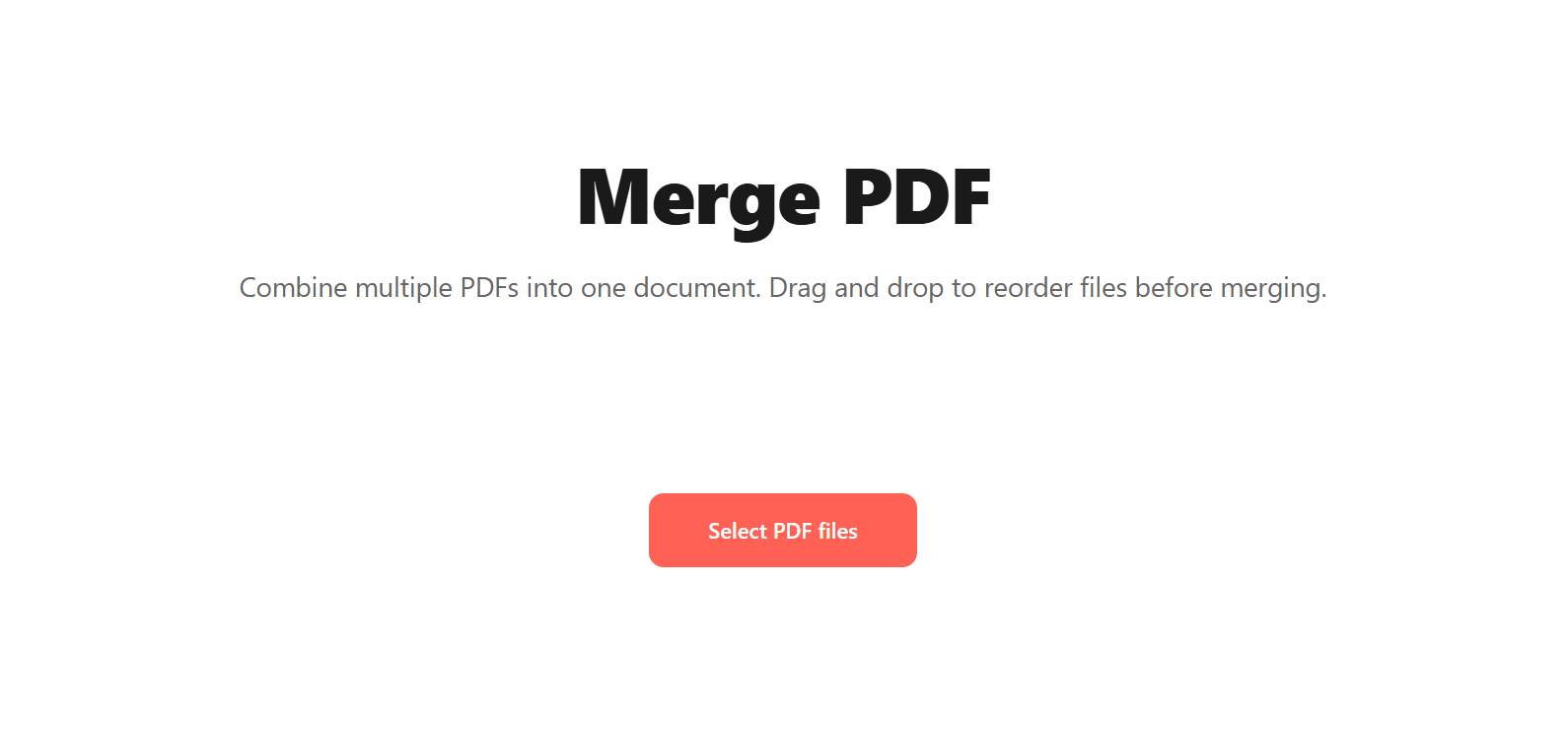
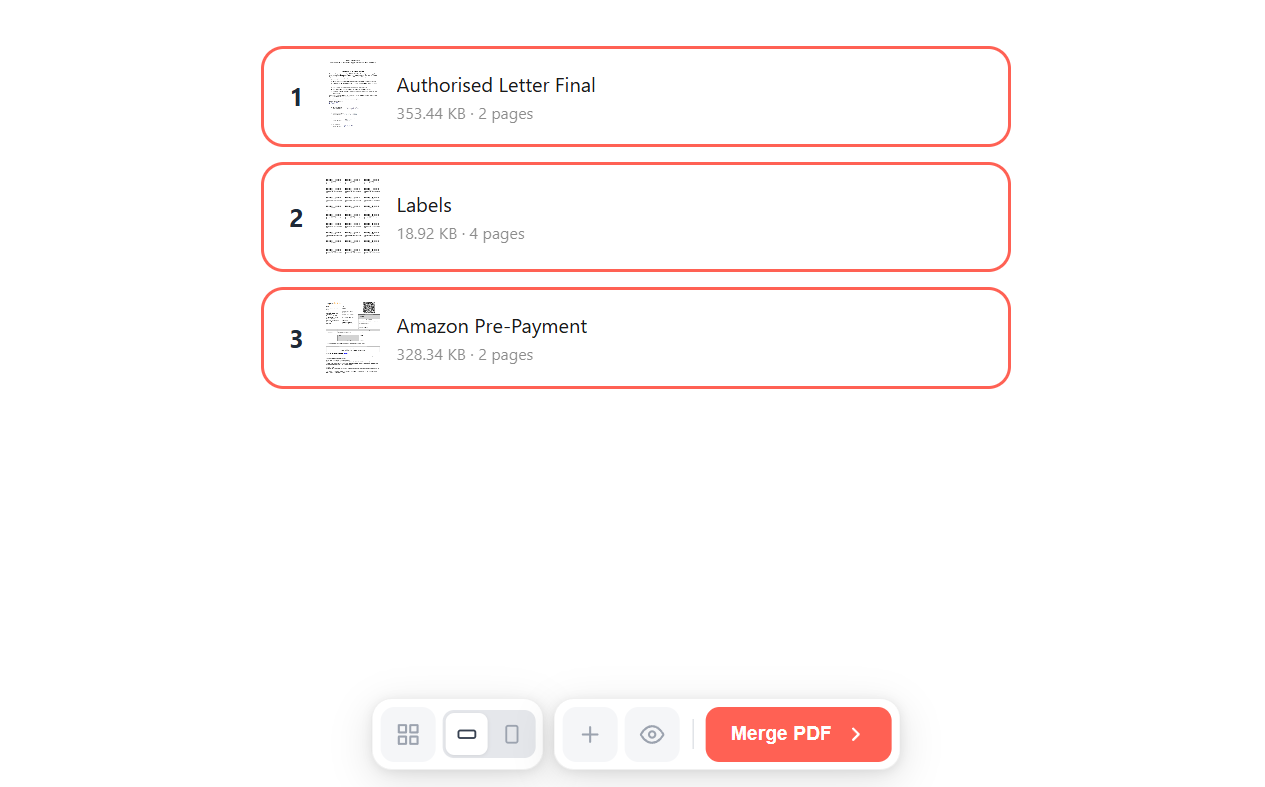
Each file appears as a numbered card showing the thumbnail, filename, size, and page count. Drag the cards up or down to set the order. The top card becomes pages 1–N of the merged output, the next file continues from there, and so on.
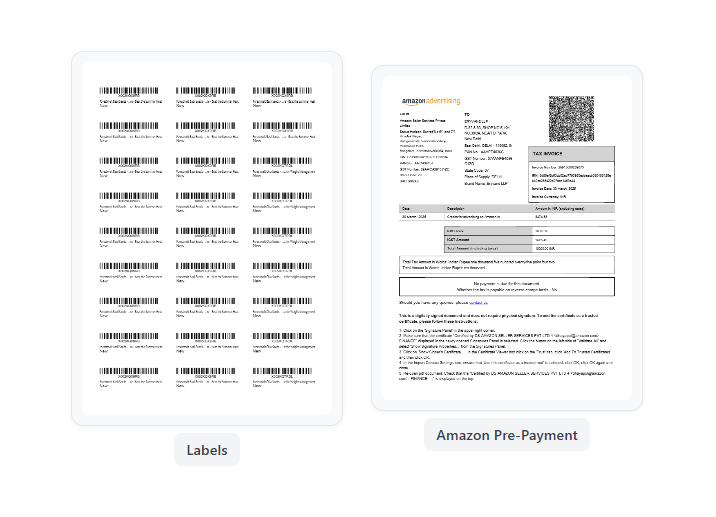
If the filenames aren't enough to tell files apart, the bottom toolbar has two view controls: a layout toggle (single-column list vs. multi-column grid) and a thumbnail size toggle (small vs. large). Bump the thumbnails up to large to see each file's first page big enough to identify by sight.

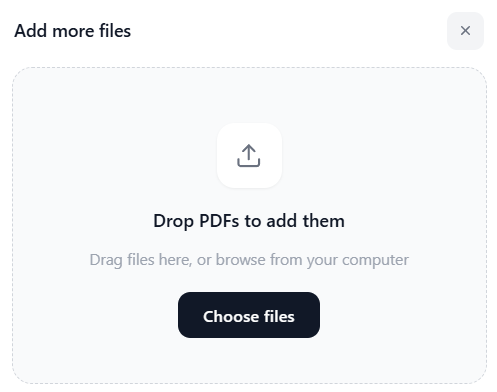
To add another file mid-flow, click the + button in the toolbar. An Add more files picker opens — drop additional PDFs in or browse for them.
Click Merge PDF.
Download the combined PDF.
Pitfall: if you select files in the wrong order from your file manager, they'll merge in the wrong order too. Always confirm the file list on the tool's screen before clicking Merge PDF. Two seconds of checking saves a second merge.
Method 2 — Pick specific pages from each source
Use this when you don't want whole files end-to-end. The classic case: the signed signature page from doc B has to land between pages 3 and 4 of doc A, while you also drop the cover letter from doc C entirely. Merge tools combine whole files, not arbitrary page sequences, so this is a two-step workflow.
Steps:
- Extract just the pages you want from each source file. Extract PDF Pages lets you select page ranges from each source and outputs them as new shorter PDFs. Do this for every source file: keep only what you need, drop the rest.
- Merge the extracted files. Open Merge PDF, drop the extracted PDFs in, drag them into the order you want, and click Merge.
This is two operations instead of one, but it stays clean even when you're stitching together pieces of a dozen source files. The alternative — merging everything and then trying to delete pages afterwards — works for two or three files, but gets unwieldy fast.
Tip: if you're going to do this regularly (every month's expense
report, every quarter's compliance package), name the extracted files
with leading numbers like 01-summary.pdf, 02-receipts.pdf so they
sort correctly in your file manager and the merge picks them up in the
right order automatically.
Common questions
Can I merge a password-protected PDF?
Not directly. Remove the password with Unlock PDF (you need the original password), merge, then re-apply protection with Protect PDF if needed.
Will merging change the formatting of my files?
No. Merging copies the page contents intact, so fonts, layouts, images, and form fields all carry through unchanged. The exception is digital signatures: a signature covers the entire document it was applied to, so merging invalidates the signature because the byte range no longer exists in the new combined file. If you need to preserve a signed section, keep the signed original untouched and merge a copy.
My merged file has pages of different sizes — how do I fix that?
That's expected: merging keeps each source file's original page sizes, so combining an A4 report with a Letter-sized appendix gives you a file that alternates between the two. To even them out, run the merged file through Resize PDF Pages, which normalizes every page to one size. The guide on why pages drift apart explains the underlying cause.
How do I merge PDFs alphabetically by filename?
Sort the files in your file manager before selecting them. macOS and Windows both preserve the selection order through to upload. If the tool has a sort button on the file list, use that; otherwise reorder the cards manually.
How many PDFs can I merge at once?
On Blackpdf there's no hard count limit; the constraint is total size. Free merges up to 25 MB, Pro 50 MB, Business 100 MB. For large batches, merging in groups and then merging the groups together works around any single-pass size cap.
Does merging reduce file size?
No, usually it slightly increases the total. The merged file holds all the fonts and resources from every source. If size matters, run the result through Compress PDF on Recommended. Our compression guide covers the trade-offs.
Can I merge a PDF/A?
Yes, but the result is only PDF/A-conformant if every input is PDF/A and the merge tool preserves the metadata correctly. Most modern processors do, but if the file has to be archive-safe, validate it afterwards. See our PDF vs PDF/A guide for when this matters.
Wrap-up
Pick the method that matches what you're doing:
- Combining whole files in a known order? Method 1. Drop in, drag to reorder, click Merge PDF.
- Only need pieces of each source file? Method 2. Extract first, then merge the extracts.
If you find yourself running the same merge regularly, workflows let you save the file order and re-run the operation on a fresh batch of inputs without redoing the drag-and-drop dance. The opposite operation (breaking one PDF back into smaller files) is covered in our Split PDF guide. If the merged result needs to be edited rather than just shared, see our PDF to Word guide — and if it needs a signature, our Sign PDF guide covers signing the combined document in one pass.