

A scanned PDF looks like a document but behaves like a picture. You can't select the text, search inside it, or copy a quote out. Screen readers can't read it. PDF-to-Word tools convert it to a Word document with a giant centered image. The fix is OCR — Optical Character Recognition — which reads the pixels, recognizes the characters, and adds an invisible text layer underneath the scan. The document still looks the same. It just behaves like a real document now.
This guide covers when you need OCR, how to run it, and what determines whether the result is accurate enough to rely on.
Before you start
Open the PDF and try to select a paragraph of text:
- If text highlights and you can copy it, the document already has a text layer. OCR won't add anything; you can skip this guide.
- If selection grabs the page as one block (acts like an image), the file is scanned or image-only. Run OCR to add the text layer.
A second quick check: does the file look reasonably sharp? OCR quality is bounded by source quality:
- Crisp 300 DPI scans of typed text: expect >99% accuracy.
- 150 DPI or photographed-with-a-phone documents: 90–97%.
- Faxed pages, blurry photos, decorative fonts: 60–90% — review carefully.
- Handwritten text: OCR engines generally can't read cursive.
If the source is too low-quality, the cleanest fix is to re-scan at a higher resolution before OCRing.
The steps
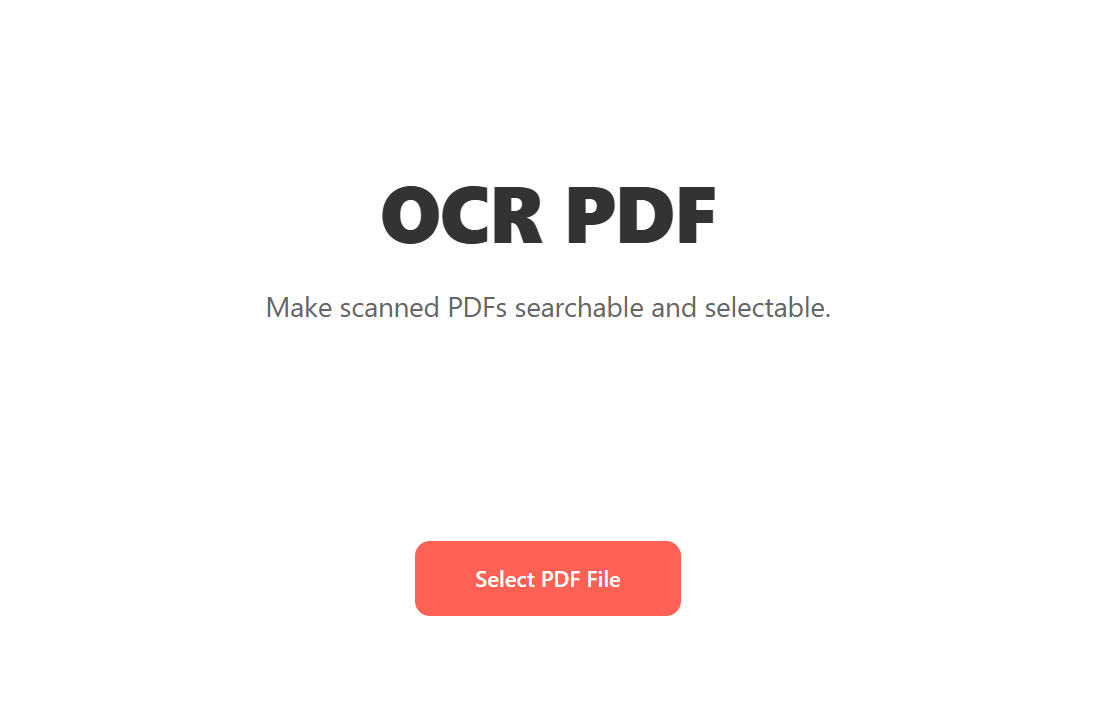
Open Blackpdf's OCR PDF tool and drop your file in.
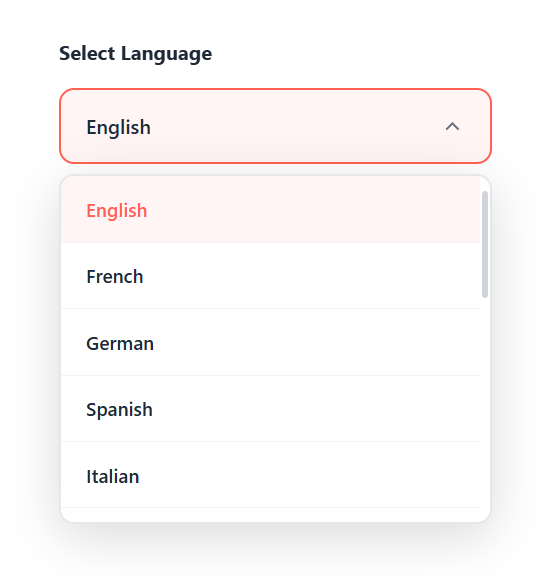
Pick the language of the document from the dropdown. The tool supports English, French, German, Spanish, Italian, Portuguese, Dutch, Polish, Russian, Japanese, and several others. Picking the right language matters: OCR engines use language-specific character models, and using the wrong one drops accuracy significantly.
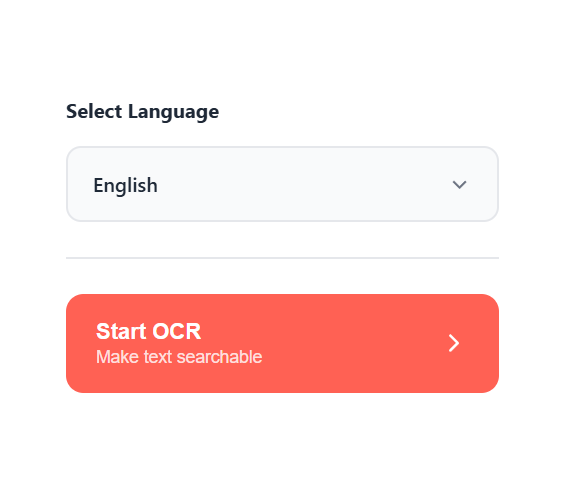
Click Start OCR.
Download the result. The new file is visually identical to your input but now has a selectable, searchable text layer underneath.
Picking the right language
This is the single most-skipped step and the most common cause of
poor OCR results. Each language model is trained on the character
shapes, accents, and word patterns of its specific language.
Defaulting to English on a French document means the engine doesn't
know about é, à, ç; it guesses similar-looking ASCII letters
instead. The output is technically text but full of garbage.
For mixed-language documents (a French research paper with English quotes, say), pick the dominant language. If the dominant language is ambiguous, run OCR twice with different settings and merge the results manually for the affected sections.
What OCR is good at and what it isn't
Reliable:
- Typed text in common fonts at 200+ DPI
- Standard latin-alphabet languages
- Tabular data with clear cell boundaries
- Headings, body paragraphs, captions
Mixed results — proofread before relying on:
- Decorative or stylized fonts
- Documents with watermarks or stamps obscuring text
- Old documents with faded ink or yellowed paper
- Mathematical equations and chemical formulas (LaTeX-style content is genuinely hard)
Not what OCR is for:
- Handwritten cursive (most engines refuse it; the ones that try are unreliable)
- Recognizing diagram contents, organizational charts, infographics
- Translating between languages (OCR extracts text in the source language only; use a separate translation step)
After OCR — what you can do next
Once a PDF has a text layer, every downstream tool can work with it properly:
- PDF to Word gives you an editable document instead of a Word file with one big image.
- Compress PDF can apply its full set of optimizations; the file size often drops 30–60% because OCR also enables structural compression that wasn't possible before.
- Searching inside the file (Ctrl/Cmd+F in any PDF reader) finally works.
- Screen readers can read the document aloud, which is required for many accessibility compliance regulations.
Common questions
Does OCR change how the PDF looks?
No. The visible page content stays exactly the same; OCR adds an invisible text layer underneath the existing image. Open the OCR'd file side-by-side with the original and you won't see a difference, but try to select text and the new file responds.
How long does OCR take?
A few seconds per page for short documents; large books can take minutes. The accuracy / speed trade-off is fixed; you can't make OCR faster without dropping quality, but the speed is rarely the bottleneck for users.
Why does my OCR have weird characters in it?
Almost always the wrong language setting. Re-run with the correct language. Other causes: very low source DPI, decorative fonts, overlapping watermarks. If accuracy still looks off after language-correctness, the source quality is the limit; re-scan at higher DPI.
Can I OCR a password-protected PDF?
Not directly. Remove the password with Unlock PDF first (you'll need the original password), then run OCR.
Will OCR make the file size larger or smaller?
Slightly larger, because OCR adds a text layer on top of the existing page content. The increase is usually a few hundred KB on a multi-page document. If size matters, compress the result afterwards — compression on an OCR'd file is often more effective than on the raw scan, because the text layer enables additional optimizations.
Do I need OCR for PDF/A?
Yes, if the file is image-based. The accessibility-focused PDF/A conformance levels (PDF/A-1a, PDF/A-2a, PDF/A-3a) require a text layer, so a scanned PDF can't be valid PDF/A at those levels without OCR first. See our PDF vs PDF/A guide.
Wrap-up
OCR is the prerequisite step for almost everything you'd want to do with a scanned PDF — convert it to Word, search inside it, make it accessible, archive it as PDF/A. The workflow is short:
- Drop the file in.
- Pick the right language.
- Click Start OCR.
- Download.
The single thing that determines whether the result is usable is language selection plus source quality. Get those right and the rest of the PDF toolchain works on the file the same way it works on any text-based PDF.