


Page order is one of those things nobody thinks about until it's wrong. The scanner fed the pages in the wrong sequence. A signed page belongs three pages earlier than where it landed. The appendix should be at the back, not wedged in the middle. Someone wants the odd and even pages interleaved because they were scanned in two passes. None of these need a full editor — they need a single view where every page is a thumbnail you can drag, turn, or throw away.
This guide covers reordering pages, the bulk operations that handle the tedious cases, and when organizing is the right tool versus merging or splitting.
Before you start
A couple of things worth knowing first:
- The PDF shouldn't be password-protected. Rearranging rewrites the page structure, which encryption blocks. If your file is locked, run it through Unlock PDF first (you'll need the original password).
- Organize keeps the pages intact — it just changes their order. Reordering, rotating, and deleting don't re-render or re-compress the pages, so text, fonts, and images carry through unchanged. It's a structural edit, not a visual one.
The steps
Open Blackpdf's Organize PDF tool and drop your file in. Every page renders as a numbered thumbnail in a grid.
Drag thumbnails to reorder. Pick up any page and drop it where it belongs; the rest shift to make room and renumber automatically. If the thumbnails are too small to tell pages apart, use the thumbnail size toggle (small / large) and the layout toggle (single column / grid) in the toolbar to get a clearer look.
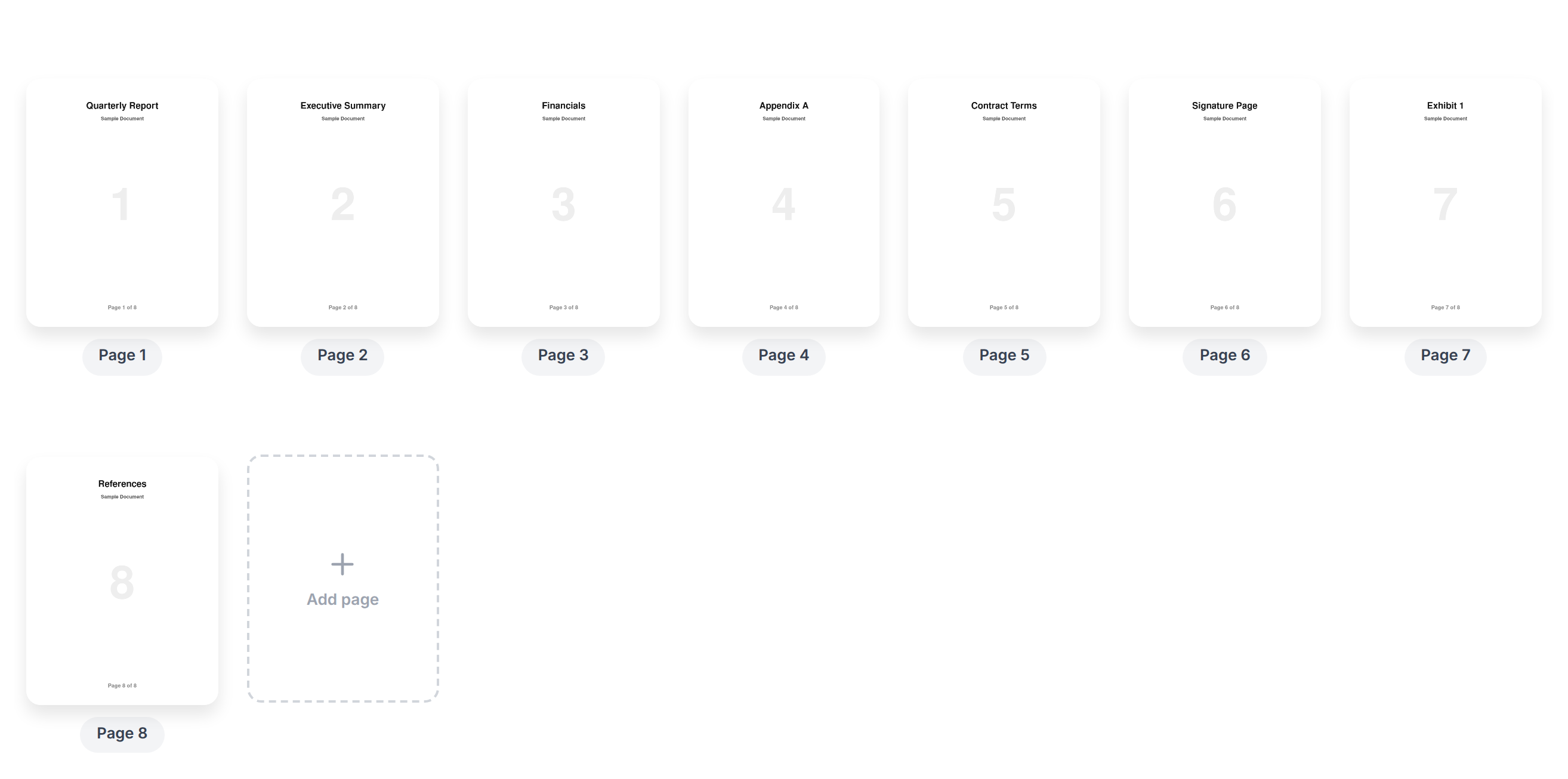
Use Sort for the mechanical cases. The Sort menu does in one click what would take a lot of dragging: sort pages ascending or descending, Reverse the whole order (handy for a document scanned back-to-front), or Odd pages first / Even pages first to interleave or de-interleave a two-pass scan. Reset to original puts everything back if you change your mind.
Fix and trim as you go. Turn on Select pages to pick multiple thumbnails, then rotate the selected pages (for the ones that came in sideways) or delete them. You can also insert a blank page or insert another PDF at any position without leaving the view.
Click Save to write your new arrangement.
Download the reorganized file.
Tip: for big reorders, do the bulk move first (Sort, Reverse, or interleave) to get close, then drag the last few pages into place. Far less work than dragging 40 pages one at a time.
Common scenarios
A document scanned in the wrong order. Drag the stray pages into position, or if the whole thing came in backwards, hit Reverse.
A two-pass scan (odds, then evens). Use Odd pages first or Even pages first to interleave the two halves into the correct reading order in one click.
One sideways page among the rest. Select just that page and rotate it — no need to leave the organize view for a dedicated rotate pass.
A few pages that shouldn't be there. Select and delete them inline. For deleting as a standalone job, the Delete PDF Pages guide covers it.
Common questions
What's the difference between Organize, Merge, and Split?
They overlap, so pick by what you're starting and ending with. Organize works inside one file — reorder, rotate, delete, or insert pages. Merge combines several files into one. Split breaks one file into several. If you're rearranging pages within a single document, Organize is the tool.
Does rearranging pages change the file's formatting or quality?
No. Reordering, rotating, and deleting are structural operations — the page contents are copied intact, so fonts, layouts, and images are unchanged. The exception is digital signatures: a signature covers the whole document it was applied to, so any structural change invalidates it. Keep a signed original untouched and reorganize a copy.
Can I add pages from another PDF while reorganizing?
Yes. Use the insert option to drop another PDF in at the position you want, then drag its pages into place. If you mainly want to combine whole files end-to-end, Merge PDF is the more direct route.
Can I pull a few pages out into their own file?
Organize is for rearranging within one document. To save a range of pages as a separate file, use Extract PDF Pages; to break a document into multiple files, use Split PDF. The delete, extract, or split overview explains which of these fits which job.
I rearranged the pages but the bookmarks/links now point to the wrong place.
Internal links and bookmarks reference pages by position, so moving pages around can leave them pointing at the wrong spot. After a big reorder, check any table-of-contents links and rebuild bookmarks if the document relies on them.
Will my page numbers update automatically?
Only the thumbnail numbering in the tool updates. Page numbers printed on the page are part of the content and don't move. If you need the printed numbers to match the new order, restamp them with Add Page Numbers after reorganizing.
Wrap-up
The flow is short:
- Drop the file in.
- Drag pages into order — or use Sort / Reverse / interleave for the bulk cases.
- Rotate, delete, or insert pages as needed.
- Click Save and download.
The thing to remember: Organize works within a single file. If you're combining separate files, use Merge PDF; if you're breaking one file apart, use Split PDF.