


Most PDFs you didn't author yourself have at least one page that doesn't belong — a scanned cover sheet you don't need, an "intentionally left blank" placeholder, a couple of advertisement inserts in a saved article, a separator page between sections. The fix is to delete it.
This guide walks through how to remove pages from a PDF, including bulk selection for cleaning up larger documents in one pass.
Before you start
A couple of quick checks:
- The PDF shouldn't be password-protected. Page deletion reads through the file's page structure, which encryption blocks. If yours is locked, run it through Unlock PDF first (you'll need the password).
- Keep the original. The edit runs on a copy and produces a new file — your source PDF stays untouched — but if you save the result over the source, the original page is gone for good. There is no undo on the output file.
If the goal is to remove sensitive content on a page rather than to remove the page itself, Redact PDF is usually the right tool — it keeps the page structure intact but blacks out specific text or regions.
The steps
Open Blackpdf's Delete PDF Pages tool and drop your file in. Page thumbnails render in a grid.
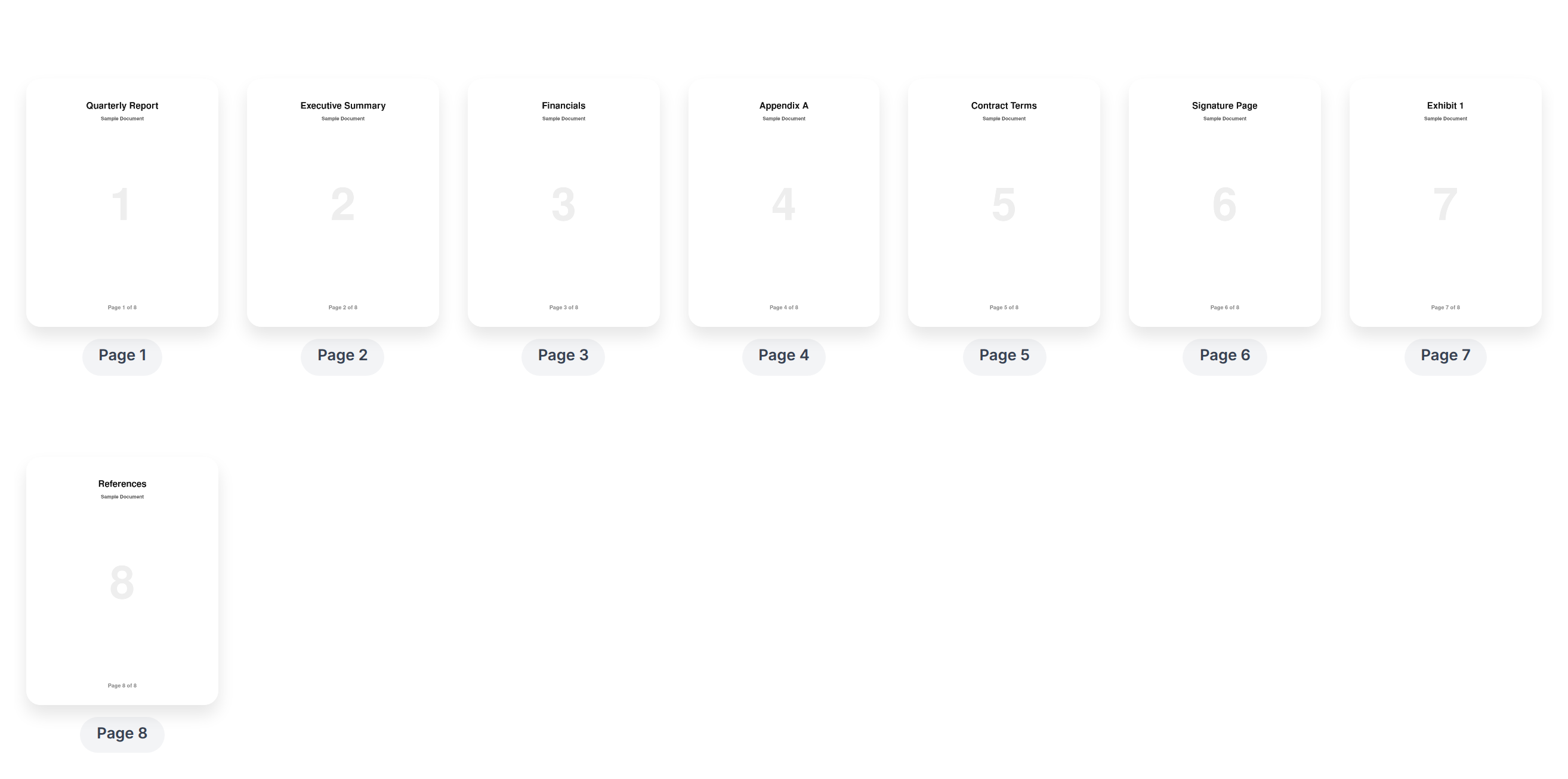
Click the thumbnails for the pages you want to remove. Selected pages get marked for deletion (greyed out with a marker). Click again to un-select if you misclicked.
For larger jobs, turn on bulk selection. The selection-mode toggle lets you sort by "odd pages first" or "even pages first" — useful for cleaning up duplex scans where every other page is blank.
Click Delete Pages when you're done.
Download the cleaned-up PDF. The output file is named
<original>_edited.pdfso you can keep both copies.
That's the whole flow. The remaining pages keep their original order and content; only the selected pages are removed.
Tips for common cases
Removing blank pages from a duplex scan. Two-sided documents scanned with one blank side per spread end up with every other page empty. Use the sort-by-even-pages option in selection mode to bring all even pages to the front, then bulk-select. A 200-page scan with 100 blanks turns into a 30-second cleanup.
Removing a cover and back page. Common for scanned reports. Click the first and last thumbnails, hit delete. If the document is short enough that scrolling to the end is fine, this is faster than opening a tool with more options.
Removing inserted ads or separators from a saved web article. Saved-as-PDF articles from many news sites include ad placeholder pages. They're usually visually obvious — different aspect ratio or "Advertisement" banner. Click each, delete, done.
Removing a few pages from the middle of a long document. If you're keeping more than half the pages and just want a few gone, delete is the right tool. If you're keeping a small minority of pages and want everything else gone, extract is the better framing — How to Extract Pages from a PDF covers that path.
For a deeper comparison of the three page-operation tools (delete, extract, split), see Delete, Extract, or Split a PDF?.
Common questions
Will deleting pages reduce the file size?
Usually yes — roughly in proportion to the content of the deleted pages. Removing a 5 MB image-heavy page from a 30 MB document drops the file to about 25 MB. Removing a near-blank page barely moves the needle. If size is the main goal, follow the delete operation with a pass through Compress PDF.
Can I delete pages from multiple PDFs at once?
Not in a single operation through the standalone tool — it takes one PDF at a time. For repeated bulk deletes across many files (e.g. "always remove the cover page from these 50 scanned reports"), build a workflow that includes a delete-pages step.
What happens to bookmarks and hyperlinks?
Hyperlinks targeting deleted pages will land on whatever takes the deleted page's slot, which is usually wrong. Bookmarks pointing to deleted pages dangle. If your PDF uses internal navigation heavily, give it a quick review after editing — or use Organize PDF which preserves navigation during edits.
Can I delete pages from a signed PDF?
Yes, but any certificate-based digital signature on the original will be invalidated, because the signed byte range no longer matches the edited document. Visual signature stamps (drawn or typed signatures with no cryptographic metadata) are just rendered content and stay in place if their page survives.
Can I get back a deleted page?
Not from the output. The operation works on a copy of the source file — keep the original somewhere safe and you can always start over.
The tool says my file is too large to process — what now?
For very large PDFs the client-side renderer can hit a browser memory limit (mobile Safari around 256 MB, desktop browsers 1-2 GB). When that happens the tool automatically falls back to a server-side delete that doesn't have the same memory cap. If you hit the cap repeatedly, compressing the file first or splitting it into chunks for editing both work.
What if I delete every page?
The tool keeps page 1 as a safety net so you never end up with an empty file. If you wanted an empty PDF, this isn't the tool — and arguably nothing is.
Wrap-up
Deleting pages is a one-click operation per page, plus a final download. The interesting part is knowing when to reach for it versus a related tool:
- A few pages to remove from a long document → delete
- A few pages to keep from a long document → extract
- One file becoming multiple → split
Phrase the goal in plain language before opening any tool — the right choice usually picks itself from the way you describe the result.