


A long PDF without page numbers is uncomfortably anonymous. Someone reading it can't reference "page 47" in a discussion; printed copies end up out of order on a desk. Adding page numbers is one of those five-minute fixes that makes a document materially easier to work with — and most authoring tools leave the option buried in places nobody finds.
This guide covers how to add page numbers to a PDF after the fact, the format and position choices that matter, and the small details that distinguish a polished result from a sloppy one.
Before you start
A quick check:
- The PDF shouldn't be password-protected. Adding page numbers writes to the page content, which encryption blocks. If your file is locked, run it through Unlock PDF first (you'll need the original password).
- Decide what the numbering convention should be. Front matter
(cover, table of contents) sometimes uses Roman numerals while
body text starts the Arabic numbering from
1at the first body page. If your document needs that, the Start from Page and Start Numbering at options handle it (covered below).
The steps
Open Blackpdf's Add Page Numbers tool and drop your file in.
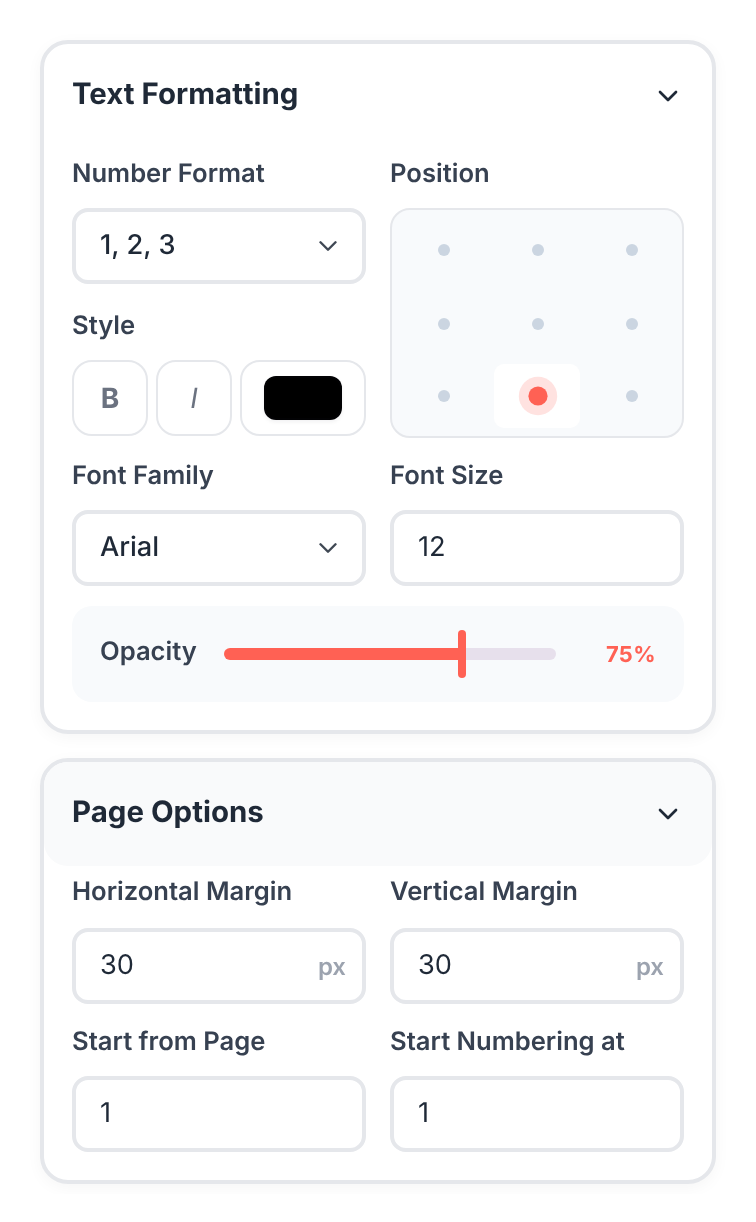
Pick a Number Format — the visible style of the numbering:
1, 2, 3— bare numbersPage 1, Page 2— prefixed with "Page"1 of 10, 2 of 10— current and totalPage 1 of 10— combined prefix and total- And a couple of dash-style variants
![Number Format dropdown open, listing the format options: "1, 2, 3", "Page 1, Page 2", "1 of 10, 2 of 10", "Page 1 of 10", "1 - 10, 2 - 10", "1/10, 2/10", "i, ii, iii", "I, II, III", and "[1], [2], [3]"](/blog/images/how-to-add-page-numbers-to-a-pdf/format-options.png)
Pick a Position from the 9-cell grid: top-left, top-center, top-right, middle-left, middle-center, middle-right, bottom-left, bottom-center, bottom-right. Bottom-center is the safe default for most documents.
Adjust the Style — bold, italic, or both.
Tune the appearance — Font Family (Helvetica/Arial, Times New Roman, Courier, or Symbol), Font Size, and Opacity.
Set the margins (horizontal and vertical distance from the page edge) so the numbers don't crowd the content.
Use Start from Page to skip front matter (e.g., skip the cover and start numbering from page 3). Use Start Numbering at to begin the number sequence at something other than 1 (e.g., a chapter that picks up from page 47 of a larger work).
Apply, then download the numbered file.
Picking the right format
The format choice is more about the document's tone than personal preference:
1, 2, 3 — clean, technical, expected in academic and
regulatory contexts. Common in long reports where the numbers act
as a reference index.
Page 1, Page 2 — more conversational. Better for short,
non-technical documents (handbooks, training materials, customer-
facing PDFs).
1 of 10 / Page 1 of 10 — the "X of Y" formats. Useful when
the recipient needs to know they're getting the whole document
(scanned dossiers, sequential reports, anything where missing pages
would be a problem). Skip for documents long enough that the
denominator gets distracting.
Position and styling tips
Position. Bottom-center is the conventional default; it doesn't interfere with content, doesn't clash with most layouts, and matches the position readers expect. Top corners read more "chapter-book" and look more deliberate; bottom corners read more "office document". Pick based on the document's tone.
Margins. Default margins keep the number close to the page edge without crowding the content. If your PDF already has a footer with content (a name, a date), bump the vertical margin up so the page number sits above it rather than overlapping.
Opacity. Full opacity (100%) is the standard. Lower opacity (60–80%) reads more "subtle reference" — good for documents where the body content should dominate. Don't go below ~40% or the numbers become hard to read.
Font and style. Match the document's body font where possible. Bold rarely looks right for page numbers (they read as headings); italic occasionally fits academic documents. Plain is usually the right call.
Common questions
Will adding page numbers move my existing content?
No. Page numbers are added as a layer on top of the existing page content, not inserted into the document flow. Body text stays exactly where it was. If your existing layout reaches all the way to the edge of the page, the number will overlap; bump the vertical margin to push it down (or up, depending on position) so it sits in clear space.
Can I skip the cover page and table of contents?
Yes. The Start from Page option tells the tool which page in
the document to begin numbering from. Combined with Start
Numbering at, you can do things like: skip pages 1–3 (cover,
copyright, TOC), start numbering at page 4, and have that page
labeled 1. The Roman numeral convention for front matter isn't
directly supported in the tool's Number Format options.
Can I number specific page ranges differently (e.g., Roman then
Arabic)?
Not in a single pass through this tool. The workaround is to split the PDF into the two ranges, number each separately, and merge them back together. Two extra steps, but it gets the result.
Can I remove page numbers later?
Not easily through any tool — once added and saved, the page numbers become part of the page content. Always keep an unnumbered master copy somewhere in case the numbering needs to change. For removing them, you'd need a PDF editor and a manual white-rectangle redaction over each number — workable for small counts, painful for long documents.
Can I add page numbers to a password-protected PDF?
Not directly. Remove the password with Unlock PDF first (you'll need the original password), add the numbers, then re-apply protection with Protect PDF if needed.
Will the numbers print?
Yes. Page numbers become part of the page content, so they show up on screen, in print, and in any subsequent operation on the file. That's the correct behavior — numbers visible only on screen would defeat the purpose.
Does this work on scanned PDFs?
Yes. The tool adds numbers as an overlay on the existing page content, regardless of whether that content is text or image. A scanned PDF works the same way as a text-based one.
Wrap-up
The fast path is short: drop in, pick format (1, 2, 3), pick
position (bottom-center), apply, download. The options that matter
once you've done it a few times:
- Start from Page and Start Numbering at for documents with front matter
- Opacity for documents where you want the numbers to recede
- Vertical margin if the numbers overlap an existing footer
For complex multi-section numbering (Roman front matter + Arabic body), the split-then-merge workflow gets you there at the cost of a few extra clicks.