


A long PDF often needs to live as several short ones: sending a single chapter to a colleague, extracting a signed page for the records, or breaking a 200-page report into per-section files for review. PDF readers don't ship with a "split" button, so the question becomes which approach to use. This guide walks through the two fastest methods, when each is the right choice, and the gotchas to watch for.
Before you start
Make sure the file isn't password-protected. Splitting requires read access to the document structure, which an encrypted PDF blocks. If you hit a password prompt, run it through Unlock PDF first. You'll need the original password, since unlock tools can't bypass encryption, only remove a password you already have.
It also helps to know the total page count before you start; open the file and check the page indicator. That way you can plan your range selection without scrolling around blindly.
Method 1 — Split by page range
Use this when you need a specific slice of the document: pages 4–12 of a report, or the executive summary that lives on pages 2–5.
Steps:
Open Blackpdf's Split PDF tool and drop your file in.
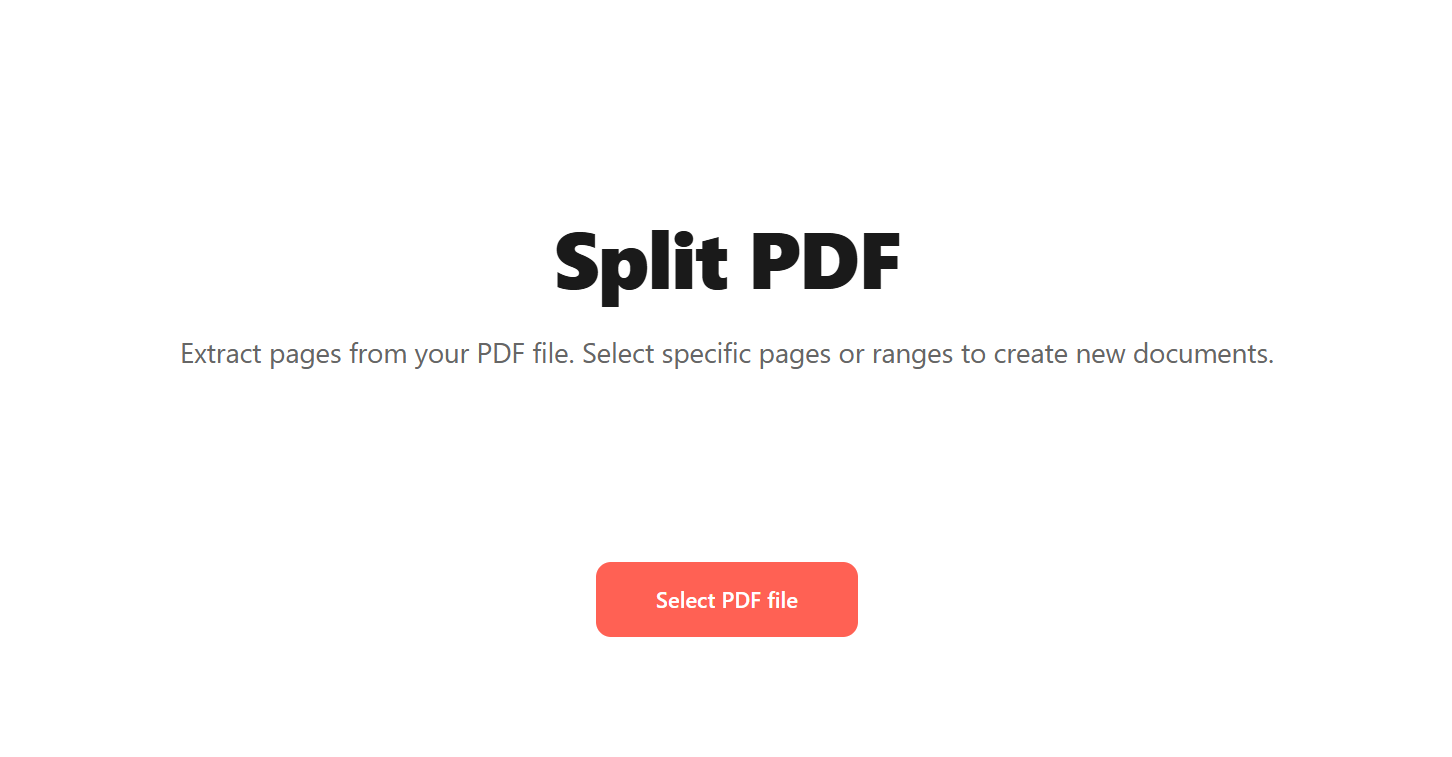
In the Select Range panel, enter the first and last page you want to keep using the From and To inputs, then click Apply Range. The page thumbnails update to show which pages will be included.
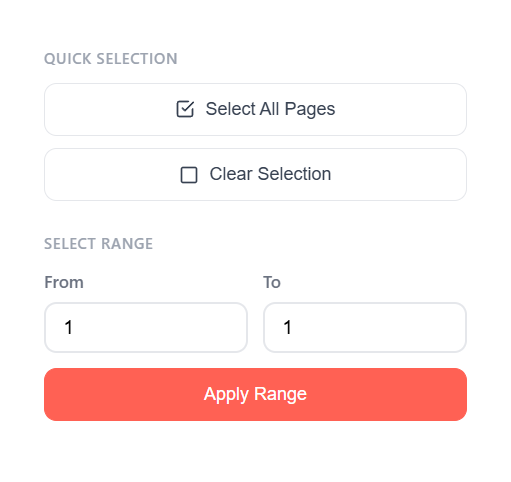
Click Single PDF. This combines the selected pages into one new file and triggers the export.
Download the result.
Pitfall: ranges are inclusive on both ends. From 1 To 1 is one page,
not zero. If you're scripting splits, that's the off-by-one most people hit
first.
Method 2 — Split into individual pages
Use this when you want every page as its own file: scanned invoices, signed contracts, or any case where each page is an independent record that needs to be filed or shared separately.
Steps:
- Open Split PDF and drop your file in.
- Use Select All Pages in the Quick Selection panel, or pick the specific pages you want by clicking thumbnails in the grid.
- Click Separate PDFs. You'll receive a ZIP containing one PDF per
selected page, named
page-001.pdf,page-002.pdf, and so on.
The naming pads page numbers with leading zeroes so they sort correctly in
file managers, so page-002.pdf lands above page-010.pdf instead of below it.
A small thing that saves you a lot of re-sorting on a 100-page split.
When not to use this: if your PDF has 500+ pages, the resulting ZIP will be large and unwieldy. Consider Method 1 with broader ranges (e.g., one file per 20 pages) and only fall back to per-page splitting when you genuinely need every page isolated.
Splitting at chapter or section boundaries
A common follow-up: what if you want each chapter of a long PDF as its own file? Some PDFs have a bookmarks/outline tree visible in the sidebar of your PDF reader. The pragmatic path is to use those bookmarks as a map rather than a feature: note the page numbers where each chapter starts, then run Method 1 once per chapter with the corresponding range.
It's a bit more clicking than a single-button "split by bookmark" operation would be, but it gives you full control over the chapter boundaries (some bookmark hierarchies are too shallow, others too deep) and the output filenames.
Common questions
Can I split a password-protected PDF?
Not directly. Remove the password with Unlock PDF (you'll need the original password), then split the unlocked file.
Does splitting reduce file size?
Sometimes. Each output PDF only contains the pages you extracted, so a 100-page file split into ten 10-page files will produce smaller individual files. But the sum of the outputs is often slightly larger than the original because each file carries its own copy of fonts and embedded resources. If size is the goal, run the result through Compress PDF afterwards. Our compression guide covers when to use each preset level.
What's the maximum file size I can split?
On Blackpdf, free accounts can split files up to 25 MB. Pro increases that to 50 MB and Business to 100 MB. For files larger than 100 MB, splitting locally with Adobe Acrobat or pdftk is usually the right move. Anything that big is going to be slow over the network regardless of the tool.
Will splitting break form fields, signatures, or annotations?
Form fields and annotations stay attached to their pages, so they survive a split intact. Digital signatures, however, sign the entire document. Once you split, the signature is invalidated on all pieces because the byte range it covers no longer exists. If you need to preserve a signature, use Extract PDF Pages on a copy of the document and keep the signed original untouched.
Wrap-up
Two methods, picked by what you're actually trying to do:
- Need a specific slice? Pick a range and click Single PDF.
- Need every page separate? Select all (or the pages you want) and click Separate PDFs.
For chapter-by-chapter splits of long documents, Method 1 run a few times with the right ranges gets you cleaner output than any automated split would.
If you also need the resulting files to be archive-safe (court filings, long-term records), our PDF vs PDF/A guide covers when to convert and why standard PDF is fine for everything else. For the opposite operation (combining several PDFs back into one), see our merge guide. If you need to edit the pages you've extracted, our PDF to Word guide covers the conversion; if you just need to sign one, see the Sign PDF guide.