


Almost nobody owns a scanner anymore, so "scanning" a document usually means photographing it with a phone. The result looks fine on the screen and terrible everywhere else: a grey cast across the page, a soft shadow where your hand or the desk lamp fell, text that's legible but muddy, and a background that's some shade of beige instead of white. Email that to a bank, a landlord, or a government portal and it reads as sloppy — sometimes it gets bounced back.
Enhancing fixes all of that in one pass. It flattens the lighting, forces the background to true white, and sharpens the text so the page looks like it came off a real flatbed scanner. This guide covers how to do it, what each control actually changes, and when to reach for the fine-tune sliders instead of leaving everything on auto.
Before you start
A few things worth knowing first:
- The PDF shouldn't be password-protected. Enhancing reads and re-renders every page, which encryption blocks. If your file is locked, run it through Unlock PDF first (you'll need the original password), enhance, then re-apply protection with Protect PDF if needed.
- Enhance is for image-based pages, not born-digital PDFs. It's built for photos and scans. A PDF exported straight from Word or Google Docs already has crisp vector text and a clean background — running it through enhancement would convert sharp text into a flattened grayscale image and make it worse. Use this on pages that are essentially pictures of paper.
- The output is grayscale. The pipeline converts each page to gray on the way to a clean black-on-white look. That's exactly what you want for a document scan; it's the wrong tool if you need to keep colour (a photo, a coloured chart, a stamp you want to stay red).
- Watch the page count and size. Enhancement re-renders every page as an image, so very long or very heavy files take longer and the free tier caps how much you can process at once. For a typical few-page document scan you'll never hit it.
The steps
Open Blackpdf's Enhance PDF tool and drop your file in. The first page renders into a Before / After compare view — the original on the left, the enhanced result on the right, with a draggable divider down the middle. Drag the divider left and right to see exactly what the enhancement is doing to your page.
Leave it on auto first. The tool opens with sensible defaults already dialled in (Whiten Background 75, Exposure 55, Contrast 60, Sharpness 40). For most phone photos of a printed page, that's the finished result — drag the divider, confirm it looks clean, and skip straight to step 4.
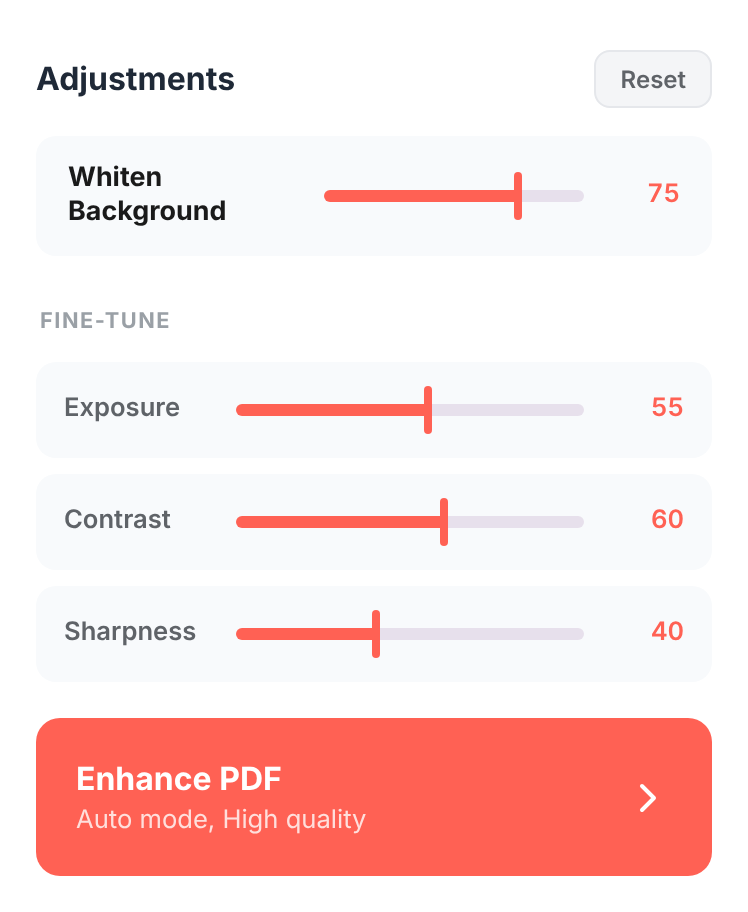
If it needs fine-tuning, adjust the sliders. Every slider updates the preview live, so you're always looking at the real output, not an approximation:
- Whiten Background is the main control and does most of the work. It removes uneven lighting and shadows, then forces the near-white pixels to pure white. Push it up if the background is still grey or a shadow lingers; pull it down if faint-but-real content (a light pencil note, a pale highlight) is getting erased along with the shadow.
- Exposure is overall brightness. Raise it for a dim, underlit photo; lower it if the page has blown out and thin strokes are disappearing.
- Contrast separates the text from the page. More contrast makes black text snap against white; too much starts crushing mid-grey detail.
- Sharpness crisps up the edges of letters. A little cures the "soft phone photo" look; too much adds a gritty halo around text.
Click Enhance PDF. The settings you see on the first page are applied to every page in the document, and each page is rebuilt into the cleaned-up PDF.
Download the result. The default filename is
enhanced.pdf; click it to rename before downloading if you like.
Tip: the Reset button puts every slider back to its default in one click, so you can experiment freely. If you push a slider too far and the page looks worse, Reset and start from auto rather than trying to unwind each change by hand.
When to use which control
The defaults handle the common case. Reach for the sliders when your source has a specific problem:
A shadow across the page. This is the most common phone-scan flaw — a soft gradient where the room light fell off, or your own shadow over one corner. Whiten Background is built for exactly this: it divides the page by a blurred copy of itself, which cancels slow lighting gradients while leaving sharp text alone. Push Whiten up until the shadow is gone.
A dim, yellowish photo. Shot indoors under warm light, the whole page comes out underexposed and beige. Raise Exposure to lift it, and let Whiten clamp the background the rest of the way to white.
Faint pencil or pale highlighter you need to keep. Aggressive whitening treats faint marks as background and erases them. Pull Whiten down so the threshold is gentler, and lean on Exposure and Contrast instead to clean up without wiping the light content.
Soft, slightly-out-of-focus text. A small Sharpness bump rescues mushy phone-camera text. Keep it modest — past the midpoint you start seeing a halo around every letter, which looks worse than the original softness.
Common questions
Does enhancing make the scanned text searchable?
No. Enhancement is purely visual — it cleans up how the page looks, but the output is still an image of text, not selectable text. If you need to search or copy the words, run the enhanced file through OCR PDF afterwards. In fact, enhancing first and OCR'ing second is a great combination: OCR is far more accurate on a clean, high-contrast page than on a grey, shadowed one.
Why does my enhanced PDF come out in black and white?
That's by design. The enhancement pipeline converts each page to grayscale to produce the crisp black-on-white look of a real document scan. If you specifically want grayscale without the shadow-removal and white-thresholding — say, just to shrink a colour document for printing — use Grayscale PDF instead. And if you need to keep colour, don't enhance: colour is removed as part of the process.
Do the slider settings apply to the whole document or just the page I see?
The whole document. The preview shows the first page so you can judge the settings quickly, but when you click Enhance PDF, the same adjustments are applied to every page. That's the right behaviour when all the pages were shot under the same conditions — which is usually the case for a single scanning session.
My document was photographed at an angle / sideways. Should I enhance it first?
Fix the orientation first. Enhancement doesn't straighten or rotate pages — it only adjusts tone and sharpness. If pages are sideways, run them through Rotate PDF first; pages that are genuinely skewed by a few degrees are a re-shoot, since 90° rotation won't fix a tilt. Once the page is the right way up, enhance it.
Will enhancing reduce my file size?
Usually, yes — sometimes dramatically. A phone photo embedded in a PDF is a large full-colour JPEG; the enhanced version is grayscale and re-encoded, which often lands smaller. It's not a compression tool though, so if size is the goal, run the result through Compress PDF for finer control over the trade-off.
Is my document uploaded anywhere?
The enhancement itself runs entirely in your browser — the same engine draws the live preview and produces the downloaded file, so what you see in the compare view is exactly what you get. Your pages are processed on your own device.
Can I enhance a PDF that's a mix of photos and clean digital pages?
You can, but the clean pages will be flattened to grayscale images along with the rest, which is a downgrade for them. If a document is mostly born-digital with a couple of photographed pages, it's better to extract those pages, enhance them on their own, and merge them back in.
Wrap-up
For most document photos the flow is short:
- Drop the file in.
- Drag the Before / After divider and confirm the auto result looks clean.
- Nudge Whiten Background (and Exposure / Contrast / Sharpness if needed).
- Click Enhance PDF and download.
The one thing to remember: enhancement is for pictures of paper — phone photos and scans — not for PDFs that are already crisp digital text. On the right input it turns a grey, shadowed snapshot into something that looks like it came off a proper scanner. If you also need the text to be searchable, follow up with OCR PDF; if the file needs to be smaller, run it through Compress PDF.