


A PDF is great for distributing a finished document. It's not great for editing one. The moment someone sends you a contract with a typo, a quote that needs the numbers updated, or a report whose conclusions have shifted, you want the file as a Word document, not a PDF.
This guide covers two ways to convert a PDF to Word, the difference between converting a text-based PDF and a scanned one, and what gets preserved (and what doesn't) along the way.
Before you start
Open the PDF and try to select a paragraph of text with your cursor.
- If text highlights and you can copy it, the file has a real text layer underneath. Conversion to Word will pull the text out cleanly. This is the easy case (Method 1).
- If you can only select the page as one big block (it acts like an image), the PDF is scanned or image-only. Conversion will give you a Word document with the scan embedded as a picture, which is not editable. You'll need to OCR it first (Method 2).
The same check applies to PDFs exported from old scanners, fax software, or any phone scanner app that didn't run OCR. If you skip this step and the result is "a Word doc with one big image", that's why.
Method 1 — Convert a text-based PDF
Use this when your PDF was generated from a Word doc, a browser, or any source that produces a real text layer (which is most modern PDFs).
Steps:
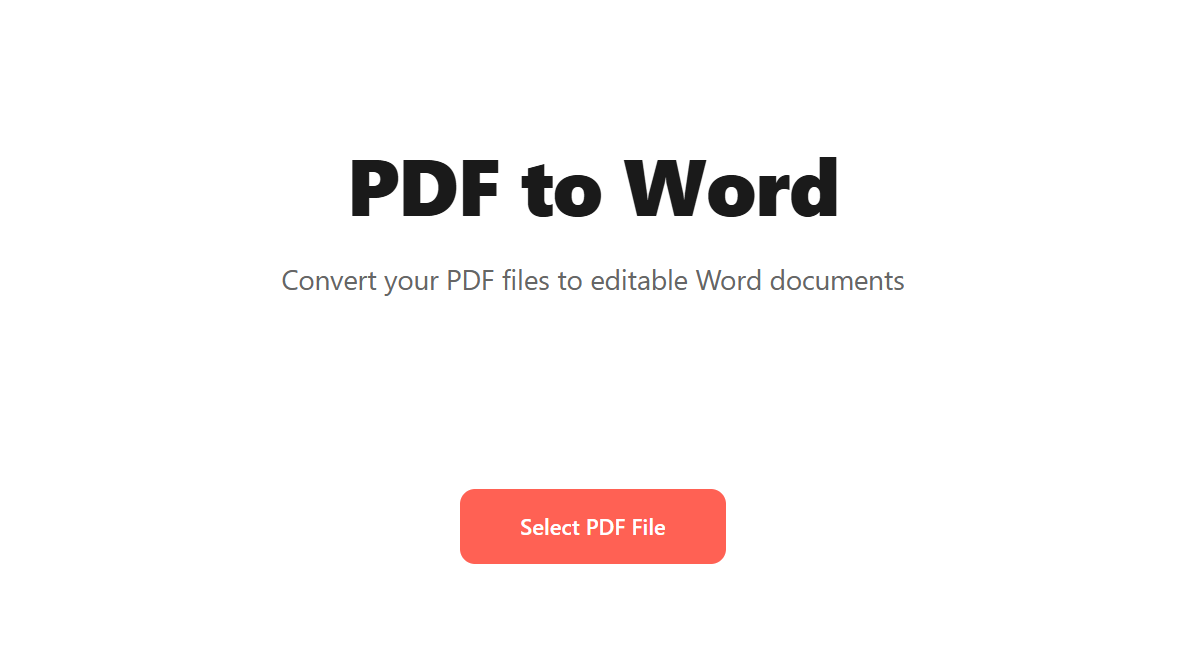
Open Blackpdf's PDF to Word tool and drop your file in.
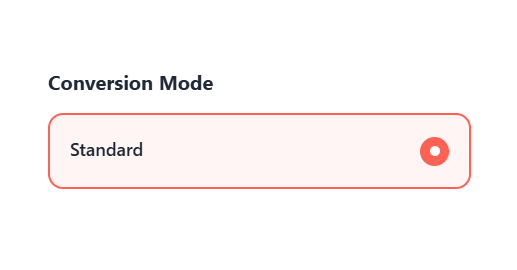
The tool defaults to Standard conversion mode. Leave it as is for most files.
Click Convert to Word. The tool generates a
.docxfile.Download and open in Word, Google Docs, LibreOffice, or Pages.
What to expect: body text comes through cleanly. Headings keep their hierarchy. Bulleted and numbered lists land in Word as proper lists, not flat indented paragraphs. Tables convert to Word tables in the common case, though heavily styled or merged-cell tables sometimes need cleanup on the Word side.
What needs cleanup: multi-column layouts (newsletters, academic journals) often flatten to single-column flow. Headers and footers get pulled into the body as regular paragraphs you'll need to delete or re-style. Page-break-sensitive content (forms, diagrams) may shift. For documents with heavy design, expect 5–10 minutes of post-conversion tidying.
Method 2 — Convert a scanned PDF (OCR first)
Use this when your "PDF" is really a picture of a document: phone scans, faxed pages, photographs of receipts, anything where the text-selection check failed.
The workflow:
- Run the file through OCR PDF first. OCR (Optical Character Recognition) reads the image pixels, recognizes the characters, and adds an invisible text layer underneath the scan. The file still looks the same, but now it has selectable text. Our OCR guide covers picking the right language and what affects accuracy.
- Take the OCR'd PDF and feed it into PDF to Word. With a text layer now present, the conversion behaves the same as Method 1.
Why two steps? A PDF-to-Word converter without OCR can only work with text it can read. Forcing a scanned PDF through a direct conversion gives you a Word doc with the scan as a centered image, which is not editable. OCR is the prerequisite step that creates the text the converter then extracts.
What to expect from OCR: modern OCR is highly accurate (>99% on clean scans of standard fonts) but never perfect. Expect occasional character misreads, especially on:
- Low-resolution scans (below 200 DPI)
- Stylized or decorative fonts
- Handwritten content (most OCR engines can't read cursive)
- Documents with watermarks or stamps obscuring text
- Old documents with degraded paper or faded ink
For mission-critical content (legal contracts, regulatory filings), proofread the OCR output before relying on it.
What gets preserved vs lost in conversion
PDF and Word think about documents differently. PDF is layout-first: every glyph has fixed coordinates on a fixed-size page. Word is flow-first: text reflows when you add or remove content. Converting between them is inherently lossy in places where those models disagree.
Reliably preserved:
- Body text and headings
- Bold, italic, underline
- Bulleted and numbered lists
- Most font choices (when the font is common; obscure embedded fonts may fall back to a system default)
- Simple tables
- Inline images
- Hyperlinks
Often needs touch-up:
- Multi-column layouts (newsletters, two-column reports)
- Floating sidebars, pull quotes
- Tables with merged cells or complex borders
- Page-break-sensitive content
- Headers and footers (often get pulled into body)
- Form fields (mostly lost in basic conversion)
Best treated as one-way: if you'll edit the Word doc and need a PDF afterwards, export to PDF from Word at the end rather than trying to round-trip Word → PDF → Word → PDF. Each round loses some fidelity.
Common questions
Will the formatting look exactly the same?
For text-only documents — memos, reports, simple letters — yes, very close. For designed documents (newsletters, brochures, anything with multi-column or complex layout), no. The conversion preserves content and basic structure, not pixel-perfect layout. If you need the layout untouched, edit the original Word doc rather than round-tripping through PDF.
Why does my converted Word file have one big image instead of text?
Your source PDF is scanned (image-only). The converter copied the image into Word verbatim because there was no text underneath to extract. Run the PDF through OCR PDF first to add a text layer, then re-convert.
Can I convert a password-protected PDF?
Not directly. Remove the password with Unlock PDF first (you need the original password), then convert.
Will form fields come through?
Mostly not in standard conversion. Form fields are PDF-specific elements; Word has its own form system that uses a different underlying format. Some text-input fields convert to plain text in the resulting document, but checkboxes, signature fields, and dropdowns generally get flattened or lost. For documents whose interactive fields matter, work with the original PDF rather than converting.
How large a PDF can I convert?
On Blackpdf, free accounts handle up to 25 MB, Pro 50 MB, Business 100 MB. For files larger than that, splitting the PDF into smaller pieces, converting each, and stitching the Word documents back together is the usual workaround. If image-heavy size is the issue rather than sheer page count, compressing the PDF first often gets you under the cap.
What about PDF/A files?
PDF/A files convert to Word the same way as standard PDFs. The archival format's constraints (embedded fonts, no encryption) make conversion if anything more reliable, since the fonts are guaranteed to be present. Just remember that any PDF/A status is lost once you move to Word; if you need an archive copy afterwards, re-export to PDF from Word and then run it through PDF to PDF/A to restore conformance.
Wrap-up
Two scenarios, two paths:
- Text-based PDF (selectable text)? Method 1. Drop in, convert, download.
- Scanned PDF (text doesn't highlight)? Method 2. OCR first to add a text layer, then convert.
Expect cleanup on heavily designed documents: multi-column layouts, custom typography, complex tables. For plain reports and letters, the output is usually editable as-is. And if you find yourself doing the reverse trip often (Word to PDF to Word), it's cheaper in time and fidelity to keep the Word original as the editable master and only publish a PDF when you need to distribute it.
If you don't actually need editable text and just want the page as a picture (for a slide, a web embed, a preview), converting to an image is the simpler job. See our PDF to JPG guide.