

Export a PDF from almost any modern application (Word, Pages, your browser) and you'll see a small option in the dialog labeled "PDF/A". It looks like a variant of the same format, and in some sense it is, but the consequences of choosing it (or not) only become obvious five or ten years later, when somebody opens your file and something inside it is missing.
This guide covers what PDF/A actually changes, the variants you'll run into, when it's the right format to pick, and when reaching for it just makes your workflow harder than it needs to be.
What PDF/A actually changes
PDF/A is a constrained subset of PDF. The full PDF specification allows a lot: JavaScript, audio, video, encryption, references to external fonts and images, content that depends on the viewer's installed software, even forms whose behavior changes based on the current date. PDF/A removes most of that.
Specifically, a PDF/A file must:
- Embed all fonts in full. No system-font references; every glyph has to be carried in the file itself.
- Embed all images and color profiles. Nothing fetched externally, no links to remote resources.
- Avoid JavaScript, audio, video, and executable content. Anything that would behave differently on different machines.
- Avoid encryption. The file must be readable without keys or passwords decades from now.
- Include metadata describing the document (title, creation date, author) embedded in XMP so future indexing systems can catalog it
The goal is a file that looks identical to every reader, today and decades from now, without depending on anything outside the file itself. A printed page, frozen as bytes.
The PDF/A variants you'll see
There are three main families. They all enforce the same archival principle but differ in what features they allow inside that constraint.
PDF/A-1. The original, ratified in 2005. Strictest of the three: no transparency, no layers, no JPEG2000 compression. Splits into two conformance levels: PDF/A-1a (accessibility-tagged, must be screen-reader friendly) and PDF/A-1b (basic, visual fidelity only). Most legal and government submission rules still target this level.
PDF/A-2. Published 2011. Adds back transparency, layers, JPEG2000 compression, and the ability to attach other PDF/A files inside the container. Most "modern" PDF/A output is PDF/A-2b unless you're targeting a strict regulatory standard.
PDF/A-3. Published 2012. Like PDF/A-2 but allows attachments in any format, not just PDF/A. Used by ZUGFeRD electronic invoices in Germany, where a human-readable PDF/A view sits alongside a machine- readable XML payload inside the same file.
If you have no specific guidance, PDF/A-2b is the modern safe default. Reach for PDF/A-1b only if a regulator explicitly demands it.
When PDF/A is required
The format is mandatory or strongly preferred in these contexts:
- Court filings. Most federal and state courts in the US, plus many courts in Europe, require PDF/A for electronically filed documents. PACER in the US accepts plain PDF but prefers PDF/A; many European courts reject non-conformant submissions outright.
- Long-term archives. Institutional and corporate archives governed by ISO 14721 (OAIS) or national digital preservation policies almost always specify PDF/A.
- Regulatory filings. Financial filings to SEC, EU MiFID II reports, FDA submissions for drug approvals, patent office submissions in many jurisdictions.
- Government records. Public records subject to long-term retention rules under laws like the US Federal Records Act.
- Accessibility-required documents. Anything that has to be screen-reader-compatible long-term often targets PDF/A-1a or PDF/A-2a (the "a" conformance level).
If your document falls into one of these buckets, PDF/A isn't optional — the file will be rejected at intake if it's not conformant.
When standard PDF is fine
For most day-to-day uses, plain PDF is the right format and PDF/A would just create friction. Reach for standard PDF when:
- You're emailing the file for review, signing, or sharing
- You'll edit the file again later. PDF/A locks down a lot of interactive elements, so re-editing it usually means converting back.
- You need form fields, JavaScript, or annotations that change behavior. These mostly get stripped or flattened in PDF/A conversion.
- You need encryption. PDF/A cannot be encrypted; if your document contains sensitive data, protect it as standard PDF and only archive an unprotected PDF/A copy in a secure archive.
- The file is temporary: receipts, invoices, statements that nobody will need to read in 2050.
Choosing PDF/A for files in these categories doesn't break anything, but it adds embedded fonts (10–15 MB easily), removes editability, and creates a file that's strictly larger than the equivalent plain PDF.
How to create a PDF/A
Most authoring software exports PDF/A directly. The pattern is the same across applications:
Microsoft Word, LibreOffice, Pages, Google Docs: File → Export → PDF, then check the "ISO 19005-compatible (PDF/A)" or "PDF/A-1" option in the export dialog. Pick PDF/A-2b unless you have a specific reason not to.
Adobe Acrobat: File → Save as Other → Archivable PDF (PDF/A). Acrobat can also convert an existing standard PDF to PDF/A via Tools → PDF Standards → Save as PDF/A.
Browser print-to-PDF: doesn't produce PDF/A out of the box. Print-to-PDF systems generate standard PDF; you'd need to round-trip through a converter.
Convert an existing PDF to PDF/A: Blackpdf's PDF to PDF/A tool takes a standard PDF and outputs a conformant PDF/A.
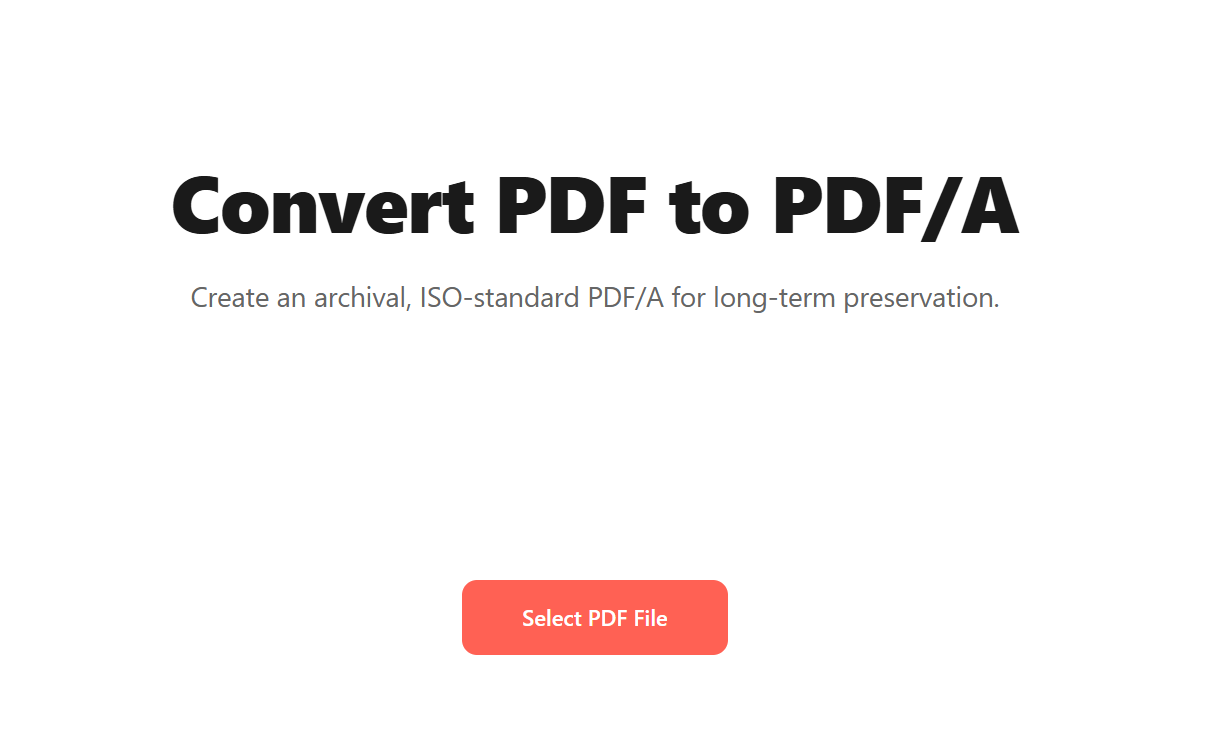
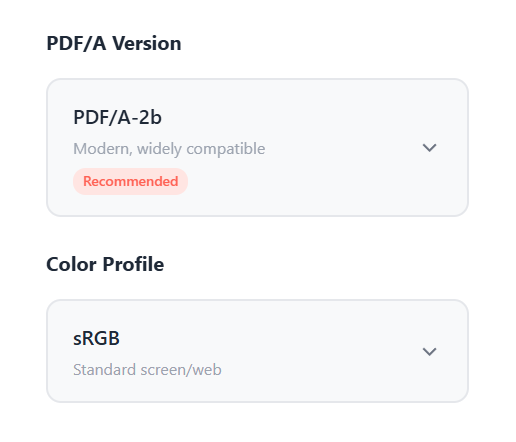
It supports PDF/A-1, PDF/A-2, and PDF/A-3, so you can pick the level your submission target requires. PDF/A-2b is the modern, widely-compatible default the tool recommends. PDF/A-1b is the level to pick only if a regulator explicitly demands it.
If your PDF contains form fields or complex interactivity, flatten the document before converting. Flattening converts every interactive element into static page content, which sidesteps a lot of conversion errors and is required anyway for the strictest PDF/A levels. For anything legal or regulatory, validate the output with a PDF/A validator like veraPDF before relying on it.
Common questions
Can I edit a PDF/A?
You can open and view it normally, but most edits that change content (adding pages, editing text, adding annotations) will technically break PDF/A conformance. The file is still a valid PDF, just no longer a valid PDF/A. The usual workflow is to keep an editable master PDF and re-export to PDF/A whenever the archive needs updating.
Does PDF/A make files bigger or smaller?
Usually bigger. The "embed every font" rule alone adds 5–15 MB to most documents. Image-heavy PDFs are often roughly the same size if the images were already embedded, but font-heavy text documents can double or triple in size when you convert them to PDF/A.
If size is a concern, you can compress the PDF/A afterwards using the Less or Recommended preset. Compression won't break conformance as long as embedded fonts and color profiles are preserved (modern compressors handle this correctly).
How long is a PDF/A actually meant to last?
The ISO standard targets readability for at least 50–100 years without relying on the original authoring software. In practice, the PDF format itself has been backward-compatible since 1993, and PDF readers exist for every major OS, so PDF/A files from 2005 still open today without any conversion. The bigger long-term risk is media decay (the disk the file lives on) rather than the format becoming unreadable.
Can I password-protect a PDF/A?
No. Encryption isn't permitted in PDF/A. If you need access control, the usual pattern is to keep the PDF/A in a secure archive system with its own permissions, rather than encrypting the file itself. For day-to-day shared documents that need passwords, use standard PDF and Protect PDF.
Can I convert a PDF/A to Word for editing?
Yes. Treat it like any other PDF and run it through a
PDF to Word converter. The archival
status doesn't carry over to Word — you'll have a normal editable
.docx. If you need PDF/A again afterwards, re-export from Word with
the PDF/A option enabled.
What's the difference between PDF/A-1a and PDF/A-1b?
The a level requires the document to be accessibility-tagged: every piece of content has to have semantic markup so screen readers can understand its structure and reading order. The b level only requires visual fidelity. If your document might be read by users with visual impairments, target the a level; otherwise b is faster to produce.
Can I split or merge a PDF/A?
Yes. Splitting or merging PDF/A files preserves conformance as long as both inputs are PDF/A and the tool correctly carries forward the embedded fonts and metadata. Most modern PDF processors do; if you're submitting the result to a regulator, validate it after.
Wrap-up
The decision is usually simple:
- PDF/A if you're submitting to a court, regulator, or institutional archive, or anyone with retention rules longer than five years.
- Standard PDF for everything else, especially anything you'll edit again or share for a one-off purpose.
If you're caught in the middle (a working document that occasionally needs an archival snapshot), the cleanest workflow is to keep the master as standard PDF and re-export to PDF/A on demand whenever the archive needs to be refreshed. That gives you editability when you need it and archival durability when you don't, without forcing one workflow to serve both purposes.