

A Word document is great for writing and editing. It's not great for
sharing. Send a .docx to someone running an older version of Word, a
free office app, or just a different font set, and the formatting will
drift: spacing changes, fonts substitute, page breaks land in the
wrong place. PDF freezes the layout the moment you export, and that
frozen layout is exactly what every recipient sees.
This guide covers how to convert a Word document to PDF and the handful of options that actually matter for the result.
Before you start
A couple of things to check first:
- Open the Word file in Word (or another editor) and confirm it renders correctly. Whatever quirks exist in the source — wrong fonts, broken table borders, headers misaligned — will land in the PDF too. Fix them in Word first; you can't easily edit them after conversion. Or, if you have to edit later, our PDF to Word guide covers the reverse trip.
- Decide whether you want PDF/A for archival purposes. If the file is headed for a court filing, a regulator, or an institutional archive, you'll want PDF/A. For everyday emailing and sharing, standard PDF is fine. See our PDF vs PDF/A guide if you're not sure.
The steps
Open Blackpdf's Word to PDF tool and drop your
.docxor.docfile in.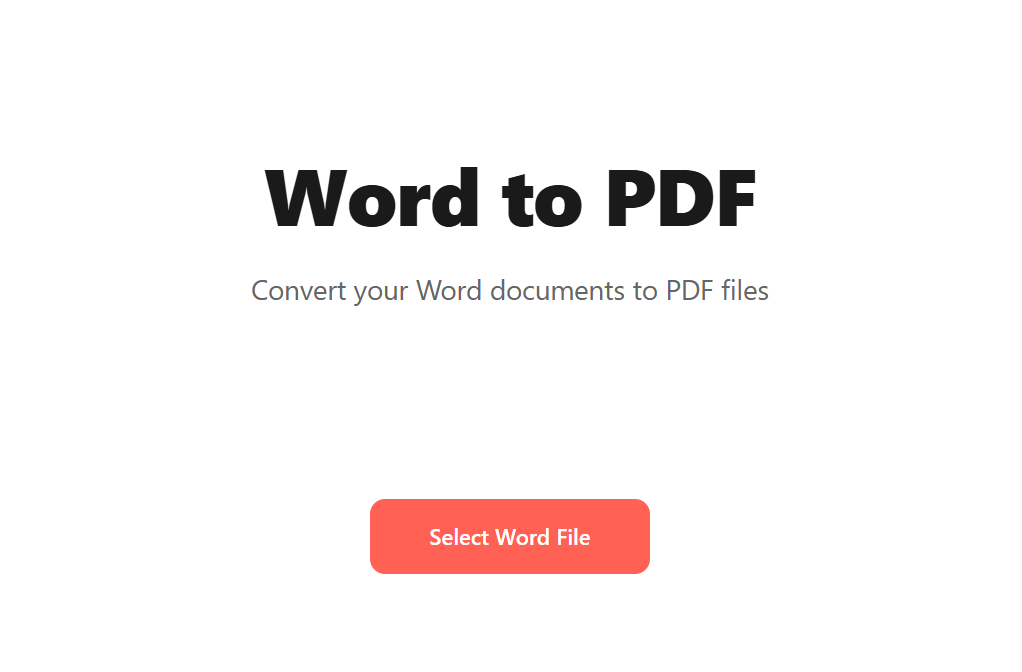
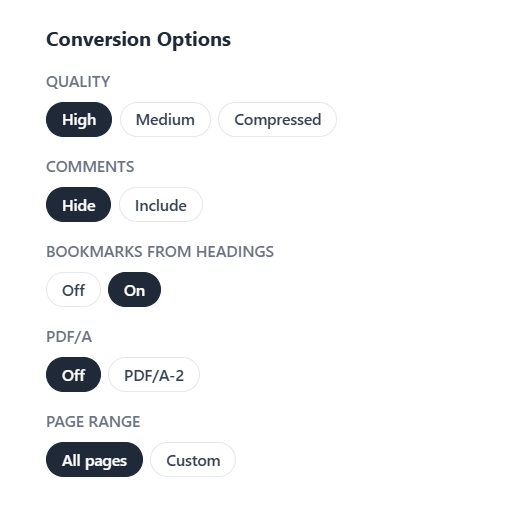
Pick your Conversion Options (covered in detail below).
Click Convert to PDF.
Download the result.
Picking the right options
The conversion options shape what the PDF looks like and how it behaves. The four worth knowing:
Quality. Pick High for documents you'll print or that contain detailed images; Medium for everyday email and web sharing (usually the right default); Compressed when the final file size matters more than fidelity. Quality affects image re-encoding more than text rendering — text stays sharp at any setting.
Comments — Hide strips comments and review annotations from the document so the PDF is a clean reading copy. Include preserves them as PDF annotations, useful for review-cycle documents where the recipient still needs to see edits and questions.
Bookmarks from headings — On mirrors your Word document's heading hierarchy (Heading 1, Heading 2, and so on) into the PDF's bookmarks panel, giving the recipient a clickable table of contents in the sidebar of their PDF reader. Worth turning on for long documents; unnecessary for short letters or one-pagers.
PDF/A — Off produces a standard PDF. PDF/A-2 produces a PDF/A-conformant archival file (specifically the modern PDF/A-2 flavor, which is the widely-compatible default — see our PDF vs PDF/A guide for when to pick this). Use it for court filings, regulatory submissions, or anything bound for a long-term archive. For everyday sharing, leave it Off; PDF/A files are larger and lock down some features.
Page Range — All pages converts the whole document. Custom lets you specify only certain pages (useful for sending just one chapter or section of a larger Word file without splitting the source first).
Common questions
Will the formatting look exactly the same as in Word?
For most documents, yes. PDF is a fixed-layout format that captures the page exactly as it renders. The places conversion can drift: fonts you have installed locally that the recipient doesn't (PDF embeds the fonts you used, so this almost never matters for the resulting PDF, only for the source Word doc), and effects that rely on Word's reflow behavior (which doesn't exist in PDF).
Will hyperlinks still work in the PDF?
Yes. Hyperlinks in the Word document carry through to the PDF and remain clickable. The same goes for email links, table-of-contents links, and cross-references.
What if my Word document has tracked changes?
Tracked changes show up in the converted PDF if you've turned on the Comments option (or accepted/rejected them in Word first). If you want a clean PDF without revision marks visible, accept all changes in Word before converting, or disable the Comments option.
Can I convert multiple Word files at once?
Drop them in together; the tool processes each one and returns a ZIP. If you want them combined into a single PDF rather than separate ones, convert each to PDF first, then merge the results.
How large a Word file can I convert?
Free accounts handle up to 25 MB, Pro 50 MB, Business 100 MB. Word files larger than that are usually image-heavy; if you can, compress the embedded images in Word first ("Compress Pictures" in the Picture Format ribbon) before converting.
Should I just print to PDF instead?
You can — every modern OS has a "Print to PDF" option in Word's print dialog. The trade-off: print-to-PDF doesn't preserve bookmarks, clickable links, or the document's outline structure. For one-time sharing it's fine; for documents you'll archive or reference, use a real conversion that keeps the structural metadata intact.
Wrap-up
The single-button case: drop the file in, click Convert to PDF, download. The options worth thinking about are short:
- Quality — High for print, Medium for sharing, Compressed for size-sensitive cases.
- Bookmarks from headings — on for long documents, off for short ones.
- PDF/A — on if the file is going to an archive or regulator, off otherwise.
- Page range — if you only need part of a long document.
For the reverse trip (PDF back to editable Word), our PDF to Word guide covers it. And if you'll be sending the result via email with a strict size cap, compressing it afterwards can shave another 30–60% off without visible quality loss.