


There are really only two reasons to convert a PDF to grayscale, and both are about what happens after the file leaves your screen. The first is printing: colour pages cost more per sheet at a print shop, and an office printer left on "colour" burns through expensive cartridges to render a document that was only ever black text anyway. The second is size: stripping colour data shrinks a file, which matters when an upload form caps you at a few megabytes.
Either way the job is the same — take a colour PDF and produce a clean black-and-white version without mangling the text. This guide covers how to do it, which of the four grayscale modes to pick, and when grayscale is the right tool versus reaching for compression instead.
Before you start
A couple of things worth knowing first:
- The PDF shouldn't be password-protected. Conversion re-renders every page, which encryption blocks. If your file is locked, run it through Unlock PDF first (you'll need the original password).
- Grayscale is one-way. Once colour is removed it isn't coming back from the grayscale file — keep your colour original if you might need it later. Convert a copy, not your only copy.
- Grayscale vs. enhance vs. compress. These three sound similar but do different jobs. Grayscale removes colour but otherwise keeps the page as-is. Enhance is for photos and scans — it also whitens backgrounds and removes shadows. Compress shrinks the file while keeping colour. Pick by your actual goal; more on that below.
The steps
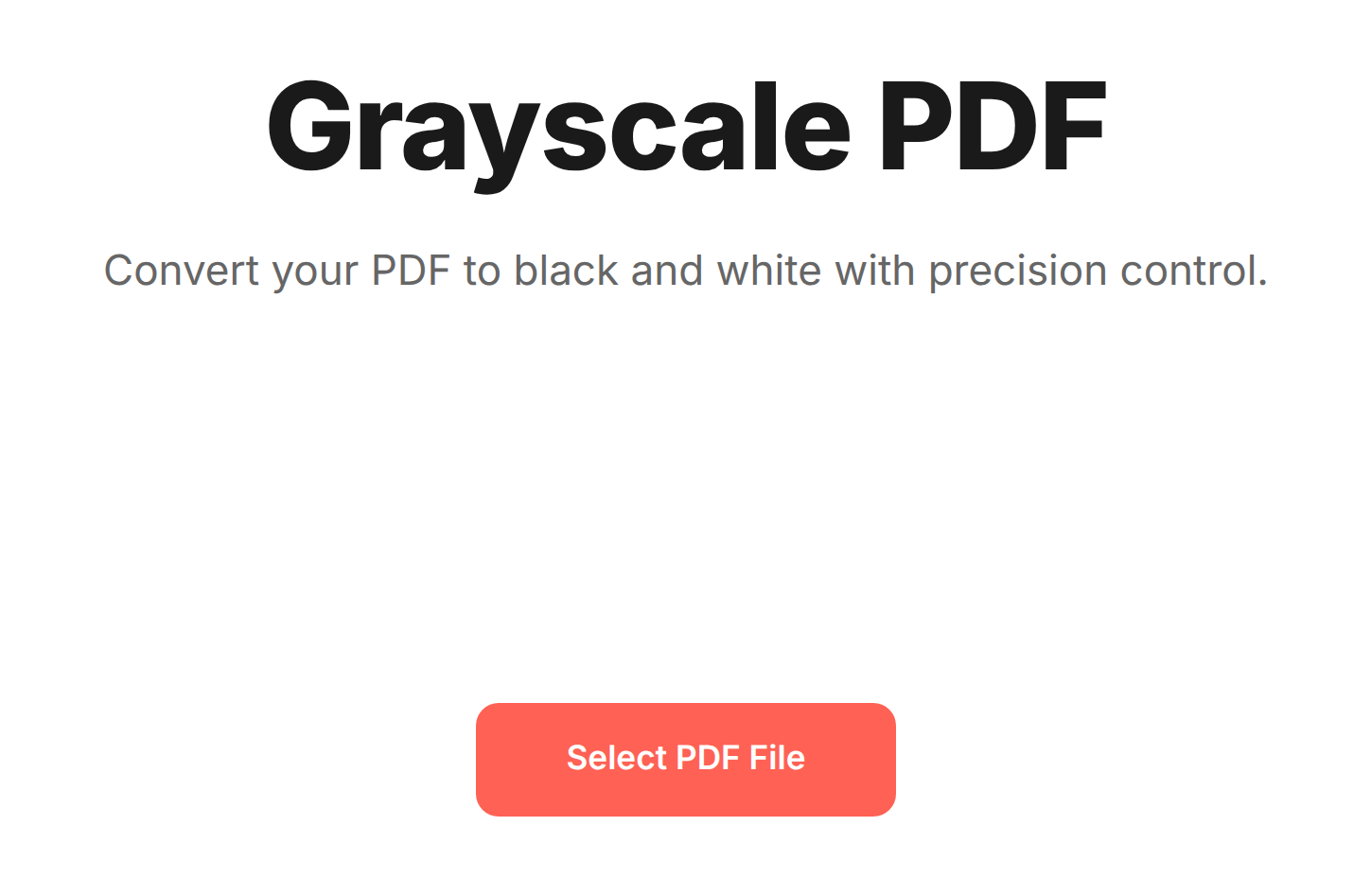
Open Blackpdf's Grayscale PDF tool and drop your file in.
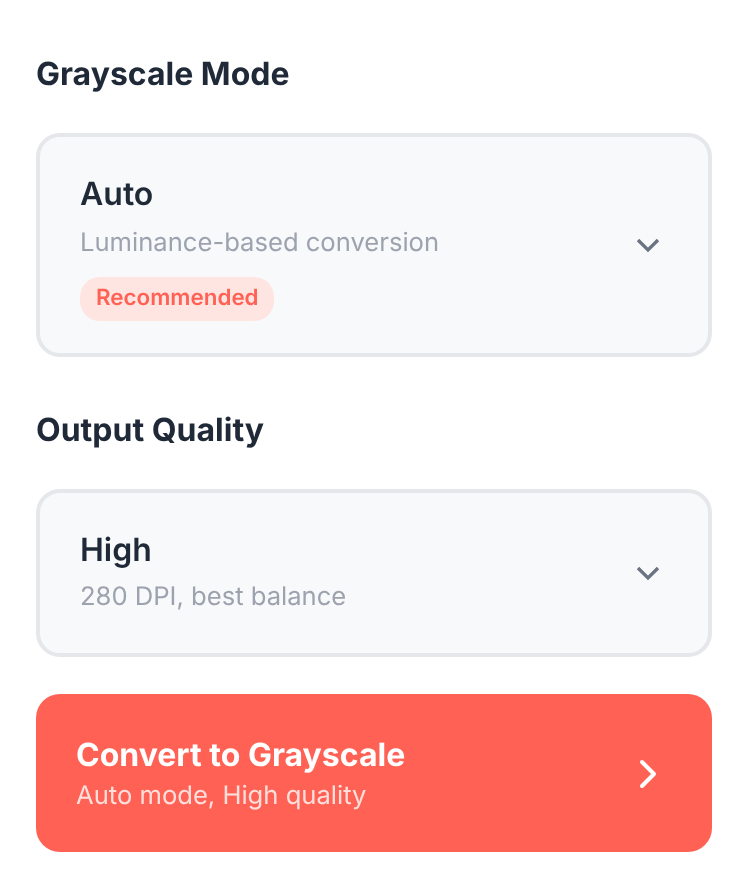
Pick a Grayscale Mode. The default — Auto — uses a luminance-based conversion that weights the colour channels the way the human eye perceives brightness, so reds, greens, and blues end up at the grey level they actually look like. It's the right choice for almost everything. The other three are for specific needs:
- Light — a subtle desaturation that retains a little warmth. Useful when a hard black-and-white feels too stark.
- Standard — full grayscale using averaged channels. A flatter, more neutral conversion.
- High Contrast — pushes toward bold black and white. Good when you want text and lines to really snap, at the cost of mid-tone detail.
Pick the Output Quality. This sets the rendering resolution: Basic (200 DPI, smallest file), High (280 DPI, the default and best balance), or Ultra (350 DPI, maximum quality). Use High for documents you'll read on screen or print normally; drop to Basic if size is the priority; reach for Ultra only when the page has fine detail that has to stay crisp in print.
Click Convert to Grayscale.
Download the result.
Pitfall: higher DPI is not always better. Ultra produces the largest file, which defeats the purpose if you converted to grayscale to make the document smaller. Match the quality to where the file is going, not to "max everything."
Which mode for which job
- Printing a colour document to save on toner → Auto, High quality. The page looks natural and prints clean.
- A presentation or chart-heavy report → High Contrast if the charts use similar colours that would otherwise turn into indistinguishable greys. Watch a legend that relies on colour, though — see the FAQ below.
- Scanned or photographed pages that also look grey and shadowed → don't use grayscale at all; use Enhance PDF, which converts to grayscale and flattens the lighting in one pass.
- You just need the file smaller and colour is fine → skip grayscale and use Compress PDF.
Common questions
Will converting to grayscale make my file smaller?
Often, yes — colour pages carry three channels of data and grayscale carries one, so there's usually a reduction, and a lower DPI shrinks it further. But grayscale isn't a dedicated size tool. If the goal is purely a smaller file and you don't care about colour, Compress PDF gives you finer control over the trade-off. For the biggest reduction, convert to grayscale and then compress.
Does grayscale keep my text searchable?
It depends on the source. Conversion re-renders pages, so a born-digital PDF may end up as flattened grayscale images rather than selectable text. If you need the words to stay searchable afterwards, run the result through OCR PDF.
My chart's legend relied on colour and now I can't tell the lines apart.
That's the inherent risk of grayscale: two different colours of the same brightness become the same grey. High Contrast mode can help separate them, but if a chart genuinely depends on colour to be readable, it shouldn't be converted — fix the chart to use patterns or labels instead, or leave that document in colour.
What DPI should I choose?
High (280 DPI) is the right default for nearly everything — it reads cleanly on screen and prints well. Drop to Basic (200 DPI) when you want the smallest file and the document is mostly text. Use Ultra (350 DPI) only for pages with fine detail headed for high-quality print, and accept the larger file size.
Can I grayscale just some pages?
The tool converts the whole document. If you only want a few pages in black and white, extract those pages first, convert them, and merge them back into the original.
Can I undo a grayscale conversion?
No — the colour information is gone from the output file. Always keep your colour original if there's any chance you'll need it again.
Wrap-up
The whole flow is short:
- Drop the file in.
- Pick a mode (Auto suits almost everything).
- Pick a quality (High is the right default).
- Click Convert to Grayscale and download.
The one thing to remember: grayscale is for removing colour — for cheaper printing or a leaner file. If your pages are photos or scans that also look grey and shadowed, reach for Enhance PDF instead; if you only want the file smaller and colour is fine, Compress PDF is the better tool.