

Flattening a PDF is one of those operations you don't think about until something breaks because of it — or until you need it specifically and didn't realize the term applied. The short version: flattening merges all the separate layers in a PDF (annotations, form fields, signatures, comments, watermarks) into the underlying page content as one rendered surface.
The result behaves like a printed copy: it looks identical, but you can no longer move, edit, or remove the elements that were once separate.
This guide covers when flattening is the right move, when it isn't, and how to do it.
What flattening actually does
A PDF can carry several layers per page:
- Page content — the text, images, and base graphics
- Annotations — comments, highlights, sticky notes, drawing markups
- Form fields — text inputs, checkboxes, dropdowns, signature fields
- Signatures — visual signature stamps drawn or typed on top of the page
- Watermarks — overlay text or images applied via a watermark tool
- Optional Content Groups (OCGs) — formal layers like "Show English / Show German"
Flattening converts every one of these into static, baked-in content. After flattening, a form field is no longer a field — it's just the rendered representation of the field at its current state. A signature isn't a separate object you can move; it's part of the page.
When you actually need to flatten
A handful of common scenarios:
- You're sharing a signed document. Without flattening, the signature is a separate, movable object. The recipient can move it, resize it, or delete it in a PDF editor. Flattening locks it into the page.
- The PDF won't compress as small as expected. Complex layered documents (forms, annotations, transparency) carry a lot of structural data the compressor has to preserve. Flattening collapses all of that into one layer and unlocks much larger size reductions on a follow-up compression pass. Covered in detail in the compression guide.
- You're submitting to a system that doesn't handle interactive PDFs. Some print pipelines, archival systems, or older PDF viewers misrender form fields or annotations. Flattening produces a guaranteed-static file.
- The recipient shouldn't see comments or markup. Internal review comments and tracked annotations are part of the file. If you share a marked-up draft without flattening, anyone with a PDF reader can see the comments. Flattening removes them as separate objects — the visible markup becomes part of the page or is excluded depending on the flattening tool's choice.
- You're working toward PDF/A archival. The strict PDF/A conformance levels forbid many interactive elements; flattening is usually a prerequisite step before converting to PDF/A.
When you shouldn't flatten
- You still need to edit the form fields or annotations. Flattening is permanent — those elements are gone afterwards in any meaningful editable sense.
- The document is a working draft. Keep an editable master and only flatten the published copy. If a later round of edits is needed, you'll need the unflattened version.
- You want recipients to fill in a form. Flattening a blank form produces a PDF where the input fields no longer accept input — it becomes a picture of a form, not a form.
Rule of thumb: flatten the copy you're handing off, not the copy you're keeping.
The steps
Open Blackpdf's Flatten PDF tool and drop your file in.
Pick a quality preset (covered below). Auto is the recommended default and handles most cases well.
Click Flatten PDF.
Download the flattened result.
Picking a quality preset
The tool offers four flattening quality levels, trading off file size against output fidelity:
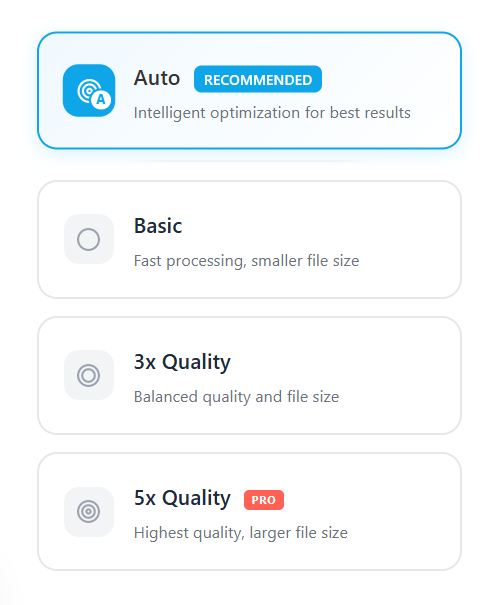
- Auto — recommended default. The tool inspects the document and picks a quality level appropriate to what it finds. Right pick for nearly every case.
- Basic — fastest processing, smallest output file. Best for documents you're flattening for quick distribution where extreme fidelity isn't required (internal review copies, draft hand-offs).
- 3x Quality — balanced quality and file size. Re-rasterizes complex elements at 3× the base resolution. Use when the flattened document might be zoomed into or printed at standard sizes.
- 5x Quality — the highest quality preset, Pro tier. Re-renders at 5× resolution for documents that need to print sharply or remain legible at large display sizes (posters, archival prints). Output file size grows significantly compared to Basic.
Pick Auto unless you have a specific reason. If file size is critical (email attachment limits), drop to Basic. If print fidelity is critical, step up to 3x or 5x.
Common questions
Will the flattened PDF look different?
It should look identical. Flattening doesn't change rendering — it just removes the ability to interact with elements that used to be separate objects. Open the flattened file next to the original and they should be visually indistinguishable.
Does flattening reduce file size?
Sometimes substantially. Documents heavy with annotations or layers often lose 20–50% of their size from flattening alone, and the flattened output compresses much better on a follow-up pass through Compress PDF because the compressor no longer has to preserve the layer structure.
Can I flatten just one layer (signatures but not annotations)?
The tool flattens everything at once. For granular control over which elements get flattened, you'd need a desktop PDF editor like Adobe Acrobat with per-element flattening options.
Will flattening invalidate a digital signature?
It depends on the signature type. A visual signature stamp (drawn or typed signature added on top of the page) stays as a visual mark after flattening but loses any tamper-evident metadata. A certificate-based digital signature that cryptographically covers the document is invalidated by flattening because the byte range it covers changes. If digital signature validity matters, don't flatten signed documents.
Can I flatten a password-protected PDF?
Not directly. Remove the password with Unlock PDF first (you'll need the original password), flatten, then re-apply protection with Protect PDF if needed.
Is flattening the same as "rasterizing"?
No, but related. Flattening preserves vector content where possible (text stays as text, vector graphics stay as vectors); it only removes the layer separation. Rasterizing converts everything to a pixel image — text becomes pixels, vectors become pixels, the file becomes a picture of itself. Rasterizing is much more destructive; flattening keeps the document's quality intact.
Wrap-up
Flattening is a one-button operation, but it's worth knowing when not to use it: anything you still need to edit, anything where form fields or signatures need to stay interactive. For everything else — final drafts, hand-offs, archival prep, compression preparation — flattening is the right step to lock the document into a permanent shape.
The opposite of "freezing" a document is hard. PDF doesn't have an "unflatten" operation. Keep an unflattened master copy somewhere safe.