

An Excel workbook is built to be edited; a PDF is built to be distributed. The moment you need to email a financial report, attach a budget to a contract, or share figures with someone who doesn't have Excel installed, the right format is PDF. The trick is keeping the spreadsheet readable in the converted file — wide spreadsheets often clip columns or split awkwardly across pages without the right settings.
This guide covers how to convert an Excel file to PDF and the four settings that decide whether the result is clean or a mess.
Before you start
Two things worth doing first:
- Open the Excel file and look at it in Print Preview (
File → Printin most spreadsheet apps). That preview shows roughly how the converted PDF will look — which columns fit, where page breaks land. If something looks wrong in Print Preview, fix it in Excel before converting; you can't easily fix layout after. - Decide which sheets you want in the PDF. Workbooks often have helper sheets you don't want shared (raw data, calculation scratchpads). The conversion tool can include all sheets or just the active one — pick what fits.
The steps
Open Blackpdf's Excel to PDF tool and drop your
.xlsxor.xlsfile in.
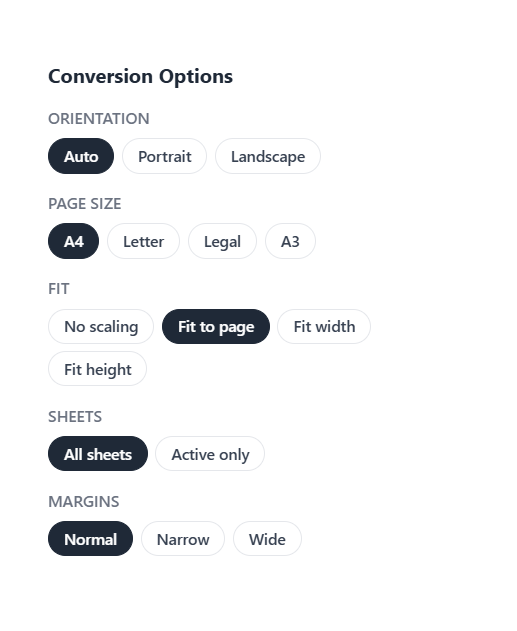
Pick the Conversion Options (covered in detail below): Orientation, Page size, Fit, Sheets, and Margins.
Click Convert to PDF.
Download the result.
The four options that decide the outcome
Page size. A4 is the default for international sharing; Letter for the US. Legal for documents that need extra length, A3 for wide tables that genuinely don't fit on standard paper. Pick based on the recipient.
Orientation. Portrait for tall data (long lists, vertical reports). Landscape for wide data (tables with many columns, financial breakdowns, anything where the columns clip in portrait). There's also Auto, which picks the orientation that fits the sheet better — a reasonable default if your workbook mixes both.
Fit. This is the most important setting for spreadsheets:
- No scaling keeps the spreadsheet at its native size; columns that don't fit get split across pages. Use only if the sheet already fits the chosen page size, or you specifically want unscaled output.
- Fit to page is the safe default. Each sheet is scaled to fit cleanly on its page — works well for most everyday cases.
- Fit width scales the sheet so the columns all fit horizontally, letting rows continue onto subsequent pages. The right pick for wide spreadsheets where you can't have columns truncated at the edge.
- Fit height scales the sheet so the rows fit vertically. Less commonly the right choice; use only if your sheet has lots of short rows and few columns.
For most cases, Fit to page or Fit width is the right pick. Fit height and No scaling are situational.
Sheets. All sheets converts every sheet in the workbook — each lands as its own section in the PDF. Active only converts just the currently-active sheet (the one that was selected when the file was last saved). For a workbook with multiple useful tabs, "All sheets". For workbooks where the supporting calculation tabs should stay private, "Active only".
Margins. Pick one of three presets:
- Normal — the standard office layout, balanced whitespace. Safe default.
- Narrow — tighter margins for fitting more content on each page. Useful when a borderline-too-wide sheet would otherwise clip.
- Wide — generous margins for printed handouts and formal documents that want more breathing room.
When the output still doesn't look right
A few common fixes:
Columns clip at the right edge. Switch Orientation to Landscape or Fit to Width.
Page breaks land mid-table. Set explicit print areas in Excel
before converting (Page Layout → Print Area → Set Print Area), or
use Excel's "Page Break Preview" to control where breaks land
manually.
Charts render as blank rectangles. Some chart types don't convert cleanly. Open the workbook in Excel, copy the chart, paste it as a picture, then convert.
Result file is huge. Heavy embedded images (logos, photos in cells) bloat the PDF. Compress the source images in Excel first ("Compress Pictures" in the Picture Format ribbon), or run the output through Compress PDF after conversion.
Common questions
Will my formulas convert?
PDF only captures the rendered output, not the underlying formulas.
A cell showing 42 after a =SUM(...) will land in the PDF as
42 — no formula, no link to source cells. If you need formulas to
remain editable, the recipient needs the original Excel file, not
the PDF.
Will conditional formatting carry through?
Yes, as rendered. Colored cells stay colored; data bars, icon sets, and color scales all appear in the PDF the way they appear in Excel. Once in PDF, those styles are static — they don't update if data changes.
What about pivot tables?
Pivot tables convert as static tables — the data layout you see in Excel at the moment of conversion. The interactive pivot controls disappear in PDF (filters, drill-down, etc.). For a recipient who needs to interact with pivots, send the Excel file.
What if my workbook has hidden sheets?
Hidden sheets aren't converted regardless of the All sheets setting. Unhide them in Excel first if you want them included.
Can I password-protect the PDF afterwards?
Yes. After conversion, run the file through Protect PDF to add a password.
Should I just use Excel's built-in "Save as PDF"?
You can — Excel has good built-in export. The advantage of a dedicated tool: it works in the browser without Excel installed, it's faster for batch conversions, and it gives you explicit control over the Fit setting (Excel's options sometimes hide that behind a print dialog).
Can I include multiple workbooks in one PDF?
Convert each workbook separately, then merge the PDFs into one file with the order you want.
Wrap-up
The settings that actually matter for spreadsheets:
- Orientation: Landscape for wide tables, Portrait for tall ones.
- Fit: Fit to page for most things, Fit width for spreadsheets that span many columns.
- Sheets: All sheets if the whole workbook is shareable, Active only if just one tab matters.
Get those three right and the conversion does the rest. For the reverse trip (PDF to Excel), the challenges are different. That's more about table structure detection than fitting.