


A PDF is great for sending a report. It's not great when the only copy of the underlying numbers lives inside a table you'd rather have in Excel. Re-typing 200 rows is the wrong answer. Converting the PDF to a spreadsheet is the right one — when the source is a text-based PDF with proper tables, the conversion is usually near-perfect.
This guide covers how to convert a PDF to Excel, what works well, what doesn't, and what to do for the awkward cases.
Before you start
Open the PDF and click into a cell of one of the tables:
- If you can select the text inside the cell and copy it, the table has a real text layer. Conversion will pull it into Excel cells cleanly.
- If the table acts like an image (you can only select the page
as a whole), the PDF is scanned. You'll need to
OCR it first to add a text layer, then
convert. Skipping OCR on a scanned PDF gives you a
.xlsxfile with one big image and no useful cells.
A second thing worth checking: is the table actually a table, or just text laid out in columns? PDF doesn't distinguish "table" from "text with tabs at consistent positions". Most converters do a reasonable job inferring table structure from spacing, but a tightly laid-out columnar list (no visible borders, no clear cell boundaries) sometimes lands in Excel as a single column instead of multiple. Worth knowing before you start so the result isn't a surprise.
The steps
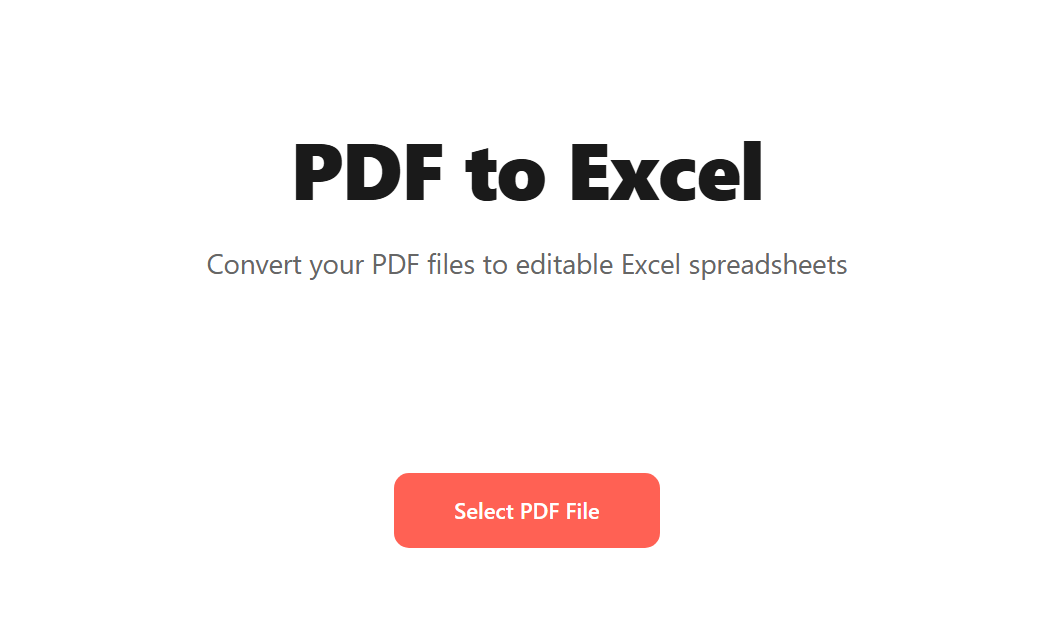
Open Blackpdf's PDF to Excel tool and drop your file in.
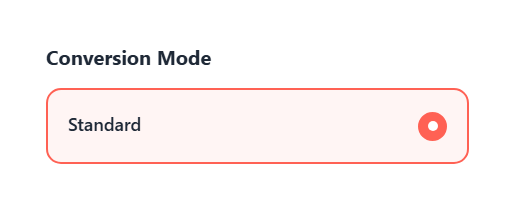
The tool defaults to Standard conversion mode. There's only one mode — leave it as is.
Click Convert to Excel. The tool generates a
.xlsxfile.Download and open in Excel, Google Sheets, LibreOffice Calc, or Numbers.
What works well and what doesn't
Converts cleanly:
- Tables with visible borders or distinct cell backgrounds
- Tables with consistent column widths
- Numeric data — currencies, percentages, dates land as proper numbers, not as text strings (in most cases)
- Header rows
- Multi-page tables (the conversion picks up that the table continues across page breaks)
Often needs cleanup:
- Merged cells (rendered as separate cells in some columns, left empty in others — needs manual merging back together)
- Tables with mixed row heights
- Cells with multi-line text (sometimes get split across rows)
- Formulas — these never carry through because the source PDF only shows the rendered value, not the underlying formula
Doesn't really work:
- Pivot-style cross-tabulations with split headers
- Tables with embedded charts, diagrams, or images
- Free-form data laid out as columns (without table semantics)
- Heavy footnote/asterisk content tied to cells
For documents that don't fit the clean-table mold, plan for ~10–20 minutes of Excel-side cleanup per page.
Common questions
Why does my Excel file have one big image instead of a spreadsheet?
The source PDF is scanned (image-only). The converter copied the page as an image because there was no extractable text underneath. OCR the PDF first to add a text layer, then re-convert.
Can I convert just one table from a multi-table page?
Not directly. The conversion produces one sheet per page, with each table on the page rendered into that sheet. If you only need one table, do the conversion and delete the other sheets, or extract the page that contains your table and convert just that.
Can I convert a password-protected PDF?
Not directly. Remove the password with Unlock PDF first (you need the original password), then convert.
Will currency, dates, and percentages convert as numbers or text?
Mostly as numbers, with Excel applying reasonable format inference.
Currencies (with $, €, £ prefixes) usually land as numbers
with currency formatting. Dates are more variable — formats like
2024-01-15 and 15 Jan 2024 are recognized; unusual formats
(Jan/15/24, 15.01.24) sometimes import as text and need an
explicit "Format Cells → Date" step. Percentages (12.3%)
generally come through as proper percentage values.
How large a PDF can I convert?
Free accounts handle up to 25 MB, Pro 50 MB, Business 100 MB. Spreadsheet-bearing PDFs are usually well under those caps; the constraint hits when the source PDF is image-heavy.
Is this the same as PDF to Word?
Same general operation (PDF in, editable document out), different target format. PDF to Word is the right pick when the content is mostly prose with occasional tables; PDF to Excel is right when the content is mostly tabular data. If a single PDF has both — a long report with a few tables — convert to Word and copy the tables into Excel separately as needed.
Wrap-up
For clean tables in a text-based PDF, the conversion is a one-click job: drop in, click Convert to Excel, download. Plan for some manual cleanup on more complex layouts (merged cells, multi-line content, mixed orientations).
For scanned PDFs, OCR is the prerequisite. Skipping it and going
straight to conversion produces a .xlsx file with a picture
instead of a spreadsheet.
For prose-heavy documents where the tables are incidental, the PDF to Word guide is probably the better starting point.