

Sometimes you need a PDF page as an image, not a document. Dropping a
page into a slide deck, posting a one-pager to social media, embedding
a diagram in a web page, attaching a preview where the recipient
can't open a PDF — all of these want a JPG or PNG, not a .pdf.
This guide covers how to convert PDF pages to images, and the two choices that actually affect the result: the quality setting and the file format.
Before you start
One quick check: is the PDF password-protected? Converting needs read access to the page content, which encryption blocks. If the file is locked, run it through Unlock PDF first (you'll need the original password).
It also helps to know how many pages you're converting. Each page becomes its own image file, so a 40-page PDF produces 40 images. The tool bundles them into a ZIP for you, but it's worth knowing what you're about to download.
The steps
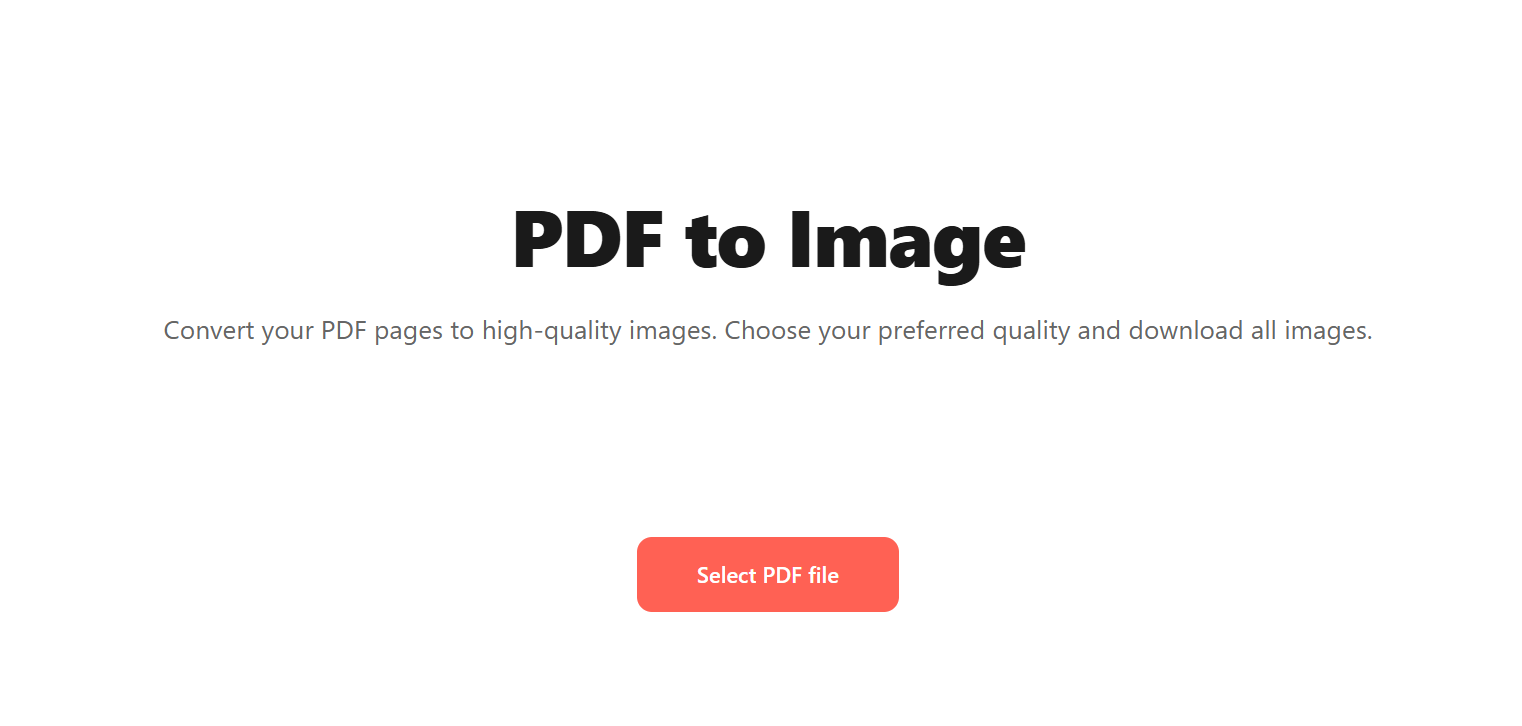
Open Blackpdf's PDF to Image tool and drop your file in.
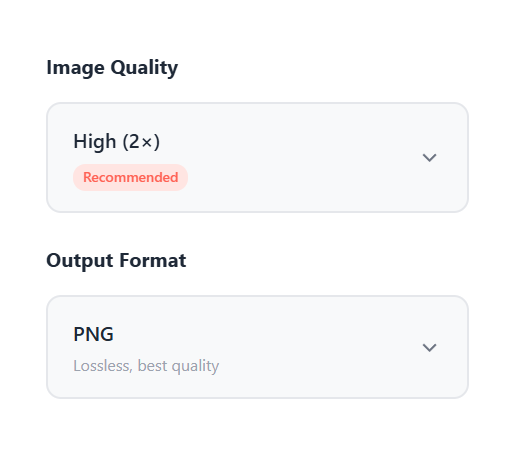
Pick an Image Quality level (covered in detail below).
Pick an Output Format — PNG, JPG, WebP, BMP, GIF, or TIFF.
Click Convert to Images.
Download. Single-page PDFs give you one image; multi-page PDFs give you a ZIP with one image per page.
Choosing the right quality level
A PDF page has no fixed pixel dimensions — it's vector instructions on a page-sized canvas. Converting to an image means rendering it at a chosen resolution, and the quality level is that choice:
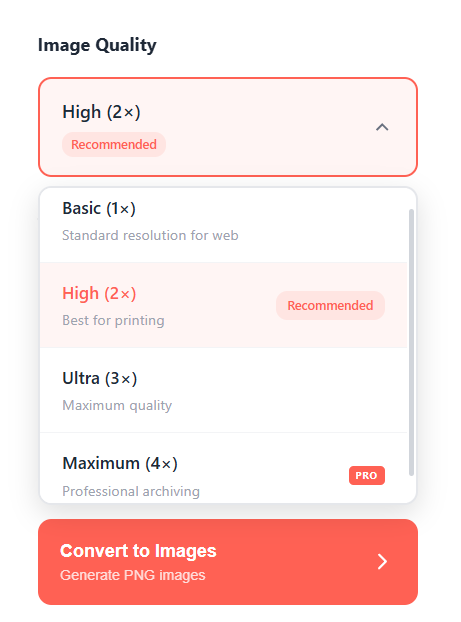
- Basic (1×) — standard resolution. The right pick for on-screen use: web pages, email previews, social posts, anything that'll only ever be viewed at normal size on a screen.
- High (2×) — double the resolution. Best for printing, or for images that might be zoomed into. This is the safe default if you're not sure (and what the tool recommends).
- Ultra (3×) and Maximum (4×) — triple and quadruple resolution. For professional print work and archiving where you want the most detail the source can produce. Maximum (4×) is a Pro tier setting.
The trade-off is file size: a 4× image is roughly 16× the pixel count of a 1× image, and the file size scales with it. Don't reach for Maximum by default — if the image is going on a web page, 1× or 2× is all the screen can show anyway, and the larger file just loads slower.
Choosing the right format
Six formats split into clear use cases:
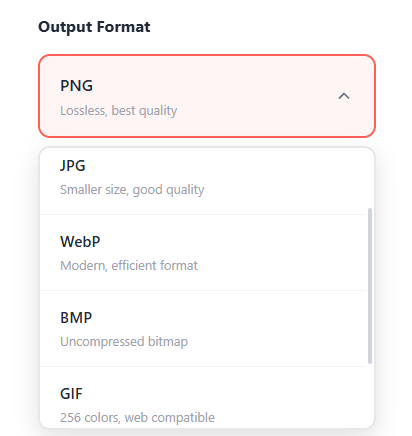
- PNG — lossless, best quality. Use it for pages with text, diagrams, line art, or screenshots, where sharp edges matter. Larger files than JPG, but no compression artifacts.
- JPG — smaller files, good quality, with some compression artifacts on sharp edges. Use it for pages that are mostly photographs, or anywhere file size matters more than pixel-perfect text edges.
- WebP — a modern format that's smaller than both PNG and JPG at similar quality. Use it for web pages where you control the markup and know the browsers support it (all modern ones do).
- TIFF — professional print format. Lossless, supports high bit depths and color profiles, and is the format most print shops, photo archives, and document-management systems expect. Files are large; the trade-off is fidelity.
- BMP — uncompressed bitmap. Rarely the right choice; only useful for specific legacy software that demands it.
- GIF — limited to 256 colors. Fine for simple graphics, poor for anything with photographic content or subtle gradients.
The short version: PNG for text and diagrams, JPG for photos, WebP for the web, TIFF for print and archives. Most people never need BMP or GIF.
Common questions
What's the difference between "PDF to JPG" and "PDF to Image"?
None, functionally — "PDF to JPG" is just the most-searched phrasing of the same operation. The tool converts PDF pages to images and lets you pick JPG, PNG, WebP, TIFF, BMP, or GIF as the output format.
Can I convert just one page instead of the whole PDF?
If you only need one page as an image, split the PDF or extract that page first to get a single-page PDF, then convert it. That gives you exactly one image with no ZIP to unpack.
Will the text in the image still be selectable?
No. Once a page is an image, the text is just pixels — it can't be selected, copied, or searched. That's the fundamental trade-off of converting to an image. If you need editable or selectable text, you want PDF to Word instead, not an image conversion.
Why is my converted image blurry?
Almost always the quality level. A page converted at Basic (1×) and then displayed larger than its natural size, or printed, will look soft. Re-convert at High (2×) or higher. If the source PDF is itself a low-resolution scan, no quality setting can add detail that was never there.
How big will the output files be?
It depends on quality and format together. A text-heavy page at Basic (1×) as a JPG might be 100–200 KB; the same page at Maximum (4×) as a PNG can be several MB. If you need many images kept small, use JPG or WebP at 1× or 2×. If size becomes a problem after the fact, the images themselves can be compressed further with an image compressor.
Can I convert a password-protected PDF to images?
Not directly. Remove the password with Unlock PDF first (you need the original password), then convert.
Wrap-up
Two decisions drive the result:
- Quality: Basic (1×) for screens, High (2×) for print or zooming, Ultra/Maximum for professional and archival work.
- Format: PNG for text and diagrams, JPG for photos, WebP for the web, TIFF for print and archival.
Get those two right and the conversion itself is a single click. And remember the trade-off baked into the whole operation: an image is a picture of a page, not the page itself — the text stops being text. If you need it back as an editable document later, that's a PDF to Word job, not an image one.